Email has become an essential part of personal and business communication. Important messages often contain contracts, invoices, attachments, customer conversations, project information, and other valuable data. Although IMAP keeps email synchronized with a mail server, synchronization is not the same as having an independent backup.
This is where IMAP backup software can help. It is designed to copy email data from an IMAP account and store it in a separate location or another supported format. Depending on the software, users may be able to back up one or multiple IMAP mailboxes and restore or migrate the resulting data when needed.
What Is IMAP?
IMAP, or Internet Message Access Protocol, is an email protocol that allows an email application to access messages stored on a mail server.
When you use an IMAP account with an email client, actions such as reading, moving, or deleting messages can synchronize with the server. This makes IMAP convenient when the same mailbox needs to be accessed from multiple devices.
For example, you might access the same mailbox through:
- A desktop email application
- A laptop
- A smartphone
- A webmail interface
- A tablet
The mailbox remains primarily associated with the email server rather than being stored exclusively on one computer.
What Is IMAP Backup Software?
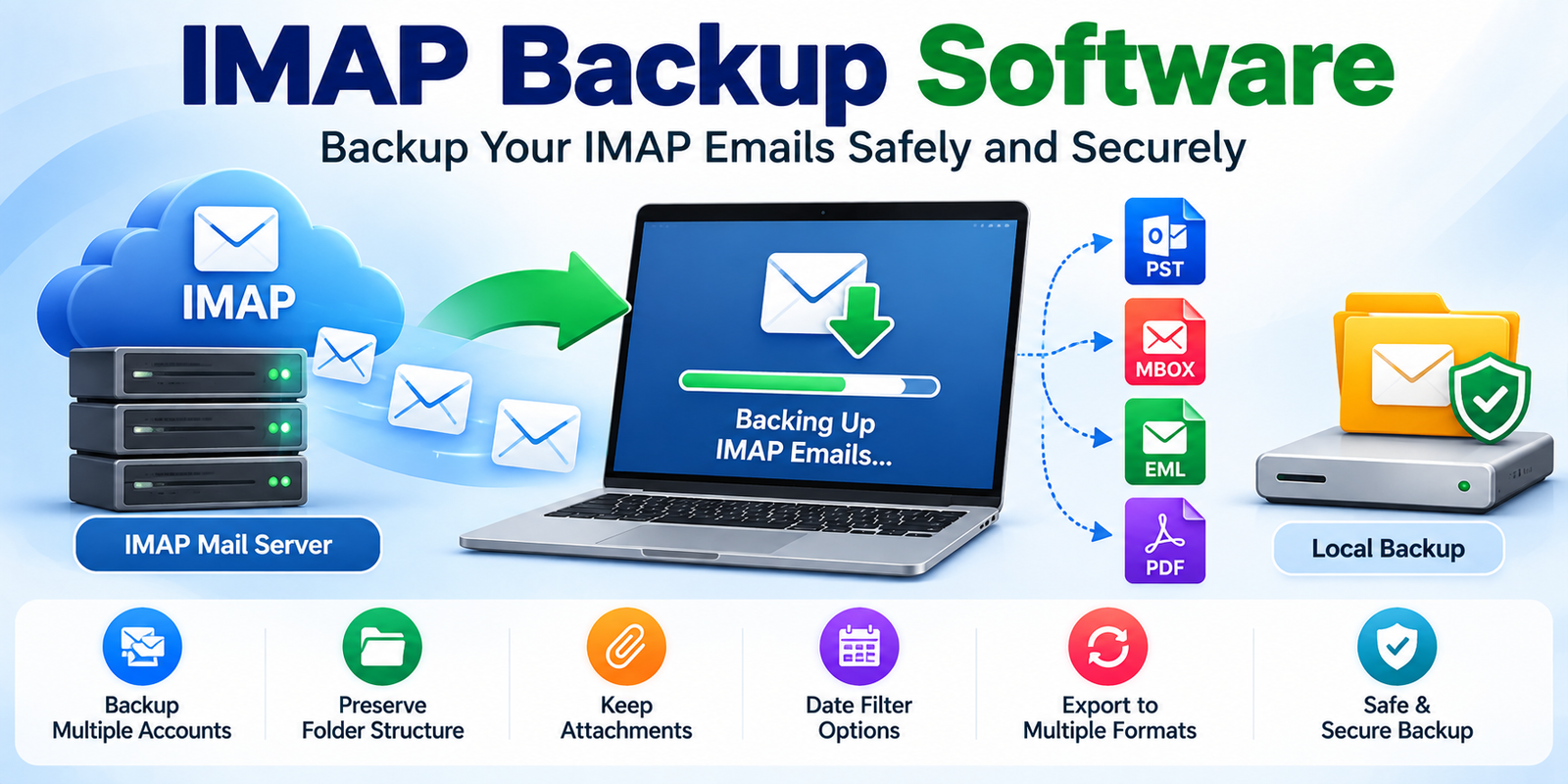
IMAP backup software is a utility designed to create an independent copy of email data stored in an IMAP mailbox.
A typical IMAP backup application connects to the mail server using the user’s account credentials or supported authentication method, reads the mailbox folders, downloads the available messages and attachments, and saves the information locally or in another supported destination.
The basic process can be represented as:
IMAP Server → IMAP Backup Software → Local Backup / Supported Output
Depending on the application, the output may include formats such as:
- PST
- MBOX
- EML
- HTML
- MSG
- Other supported archive formats
The exact formats and features depend on the software being used.
Why Is IMAP Backup Important?
A common misconception is that an IMAP mailbox is automatically backed up simply because messages are stored on a server.
Synchronization and backup serve different purposes.
Synchronization keeps devices and the server aligned.
Backup creates a separate copy that can potentially be used for recovery, archiving, or migration.
For example, if an email is accidentally deleted and that deletion synchronizes across devices, relying only on synchronization may not provide an independent copy of the original message.
An external backup can provide another copy of important mailbox data.
How Does IMAP Backup Software Work?
Most IMAP backup tools follow a relatively straightforward workflow.
1. Connect to the IMAP Account
The software establishes a connection with the IMAP server.
Depending on the email provider, this may require:
- Email address
- Password or application-specific password
- IMAP server address
- Port number
- SSL/TLS settings
- OAuth or another authentication mechanism
Modern email services may require additional authentication rather than a traditional username-and-password connection.
2. Authenticate the User
The software verifies the account and establishes an authorized session with the mail server.
Security requirements vary between email providers. Therefore, users should always check the provider’s current IMAP and authentication requirements.
3. Scan Mailbox Folders
After connecting, the software may retrieve the available mailbox folders.
These could include:
- Inbox
- Sent
- Drafts
- Trash
- Spam
- Archive
- Custom folders
The application may allow users to select individual folders or back up the entire mailbox.
4. Download Email Data
The software retrieves messages from the IMAP server.
Depending on the application, it may preserve information such as:
- Sender
- Recipient
- Subject
- Date
- Message body
- Email headers
- Attachments
- Folder information
5. Save the Backup
Finally, the software saves the downloaded information to the selected destination.
For example:
IMAP → PST
or
IMAP → MBOX
or
IMAP → EML
The output format should be selected according to how the backup will be used later.
IMAP Backup Software vs Manual Backup
Users can sometimes save individual messages manually, but this approach becomes inefficient for large mailboxes.
Manual backup may involve opening individual emails and saving them one at a time. This can create several problems:
- Time-consuming processing
- Difficulty handling thousands of emails
- Inconsistent folder organization
- Increased chance of missing messages
- Difficult attachment management
- Limited automation
Dedicated IMAP email backup software can automate the process and handle larger quantities of mailbox data more systematically.
Key Features to Look For
When evaluating IMAP backup software, consider the following features.
Multiple Account Support
If you manage several mailboxes, support for multiple IMAP accounts can simplify backup operations.
Selective Folder Backup
A useful application should allow you to choose specific folders when you do not need to back up the entire mailbox.
Bulk Backup
Bulk processing can save time when dealing with multiple accounts or large mailboxes.
Attachment Preservation
Attachments can be important business records. Check whether the software preserves them during backup.
Folder Structure Preservation
Maintaining the original mailbox hierarchy makes archived data easier to navigate and restore.
Multiple Export Formats
Support for formats such as PST, MBOX, and EML can be useful when migrating between different email applications.
Date-Based Filtering
Some backup tools provide date filters so users can back up messages from a specific period.
For example:
January 1, 2025 → December 31, 2025
This can reduce unnecessary data processing.
IMAP Backup for Email Migration
IMAP backup software can also be useful during email migration.
Suppose an organization is moving from one email provider to another. Before making changes to the original mailbox, administrators can create an independent backup.
A typical workflow could be:
Old IMAP Server → Backup Software → Local Archive → New Email System
This provides a separate copy of the original mailbox that can be retained during the migration process.
Depending on the software, the backup may also be exported into a format compatible with the destination email client.
IMAP Backup for Disaster Recovery
Email data can be affected by accidental deletion, account problems, server issues, migration errors, or other unexpected events.
A separate backup can help organizations maintain access to historical information.
For businesses, this is particularly relevant when emails contain:
- Customer communication
- Financial information
- Agreements
- Project records
- Support conversations
- Invoices
- Business correspondence
A structured email backup strategy can therefore be part of a broader data-protection plan.
IMAP Backup vs IMAP Synchronization
These concepts should not be confused.
| IMAP Synchronization | IMAP Backup |
|---|---|
| Keeps devices synchronized | Creates a separate copy |
| Primarily depends on server data | Can store data independently |
| Designed for everyday access | Designed for protection, archiving, or migration |
| Changes can synchronize | Backup copy can remain separately stored |
| Usually automatic | Can be scheduled or manually initiated |
The key difference is that synchronization is primarily about access and consistency, while backup is about creating another copy of data.
Best Practices for IMAP Email Backup
For reliable email protection, consider these practices:
- Back up important mailboxes regularly.
- Keep backup copies separate from the original server.
- Use secure storage for archived email data.
- Test backups periodically.
- Verify attachments and folder structures.
- Keep more than one backup copy for critical business data.
- Use strong authentication for email accounts.
- Keep backup software updated.
- Document the backup and restoration process.
- Do not delete the original mailbox until the backup has been verified.
Frequently Asked Questions
What is IMAP backup software?
IMAP backup software is a tool that copies email data from an IMAP mailbox and stores it in a separate location or supported file format for backup, archiving, recovery, or migration.
Is IMAP itself a backup?
No. IMAP is an email access and synchronization protocol. An IMAP mailbox being stored on a server does not automatically mean you have an independent backup.
Can IMAP emails be backed up to PST?
Yes, some IMAP backup and migration applications support exporting mailbox data to PST. The exact capabilities depend on the software.
Can I backup IMAP emails to MBOX?
Yes, software supporting MBOX export can save IMAP messages in the MBOX format, which is commonly associated with several email applications.
Can I backup multiple IMAP accounts?
Many dedicated IMAP backup applications support multiple accounts or batch processing. Check the specific product’s account and licensing limitations before starting a large backup project.
Conclusion
IMAP backup software provides a way to create an independent copy of mailbox data stored on an IMAP server. Unlike synchronization, which primarily keeps email accessible across devices, backup creates a separate copy that can be useful for email archiving, migration, recovery, and long-term data protection.
A typical workflow is simple:
Connect IMAP account → Select folders → Download emails → Choose output format → Create backup → Verify data
For individuals managing important personal email and organizations handling large business mailboxes, a structured IMAP backup strategy can help reduce dependence on a single live mailbox and provide a more manageable way to preserve historical email data.