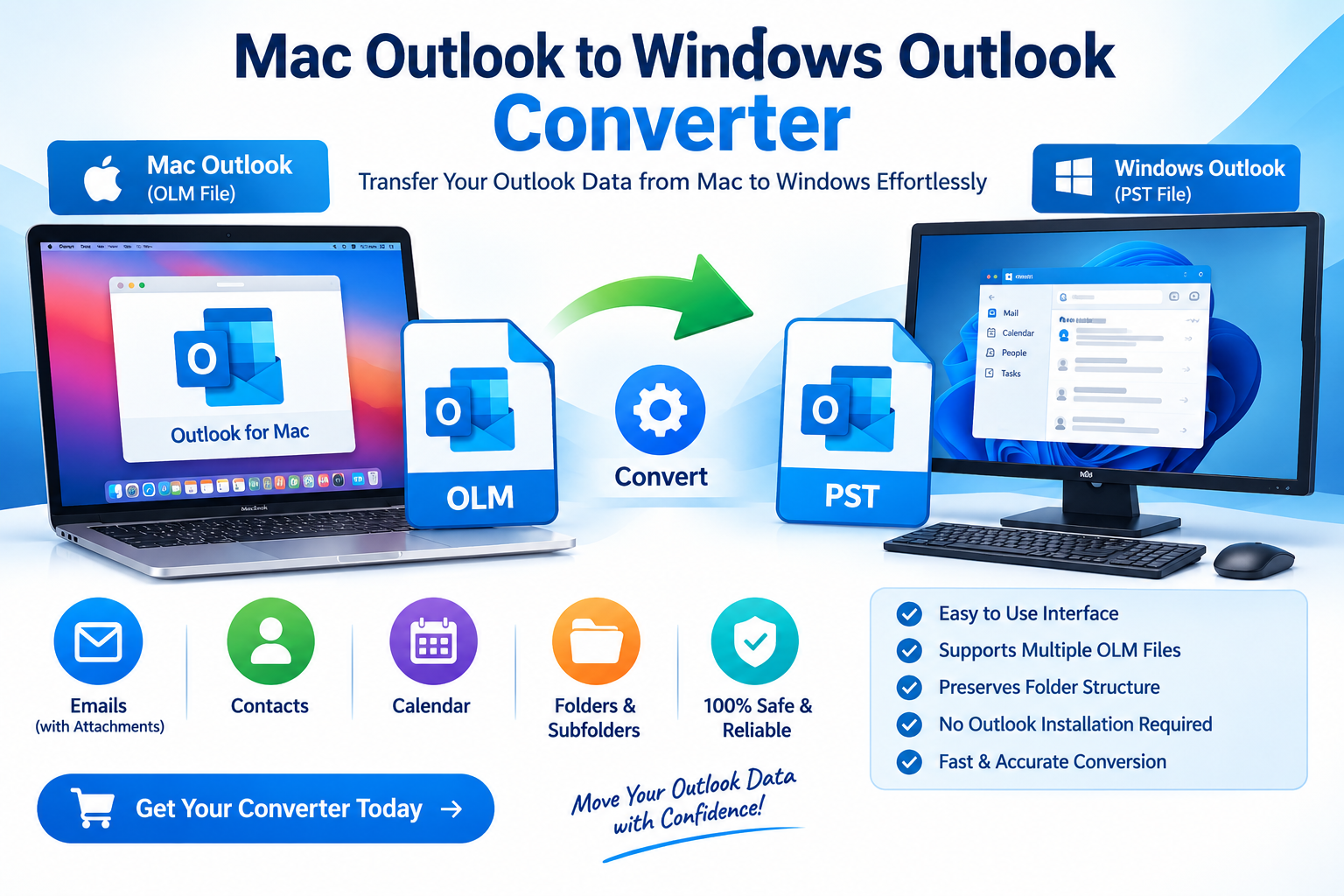
Switching from a Mac computer to a Windows PC can create challenges when migrating Microsoft Outlook data. Although Outlook is available on both operating systems, the applications may use different data file formats. Mac Outlook data is commonly stored in OLM files in older or certain Mac Outlook configurations, while Windows Outlook traditionally uses PST files for importing and exporting mailbox data.
A Mac Outlook to Windows Outlook Converter helps users transfer Outlook emails and other mailbox information from a Mac environment to Windows Outlook. Depending on the source data and software capabilities, the migration may include emails, attachments, folders, contacts, calendars, and other supported mailbox items.
For individuals, businesses, IT administrators, and organizations changing computer platforms, choosing a suitable migration method can help reduce manual work and preserve important email records.
What Is a Mac Outlook to Windows Outlook Converter?
A Mac Outlook to Windows Outlook Converter is a migration utility designed to convert or transfer Outlook mailbox data from a Mac-compatible format into a format that Windows Outlook can use.
For example, some Mac Outlook versions support exporting mailbox data into an OLM file. Windows Outlook has traditionally supported PST files for mailbox import and export. A compatible converter can process the source data and generate a Windows-compatible output file.
The exact workflow depends on the Outlook version, the source file format, the destination Outlook version, and the features supported by the selected tool.
In simple terms, the software helps move mailbox information from Mac Outlook to Windows Outlook without requiring users to recreate their mailbox manually.
Why Do Users Need to Migrate Mac Outlook to Windows Outlook?
There are several common reasons for moving Outlook data between operating systems.
1. Switching from Mac to Windows
Users who replace a MacBook or iMac with a Windows computer may want to retain their existing Outlook emails, attachments, and folder structure. Converting supported mailbox data can make the transition easier.
2. Business Computer Migration
Organizations frequently update their hardware and operating systems. During a company-wide migration, IT administrators may need to transfer historical email data while maintaining access to business correspondence and records.
3. Accessing Old Email Archives
Some users retain older Mac Outlook mailbox archives for legal, administrative, or personal reference. Converting compatible data into a Windows-supported format can simplify access on a new computer.
4. Centralizing Email Data
Businesses that use multiple computer platforms may want to consolidate mailbox archives into a consistent Windows Outlook environment. A conversion workflow can support this process when the source and destination formats are compatible.
Common Methods to Transfer Mac Outlook Data to Windows Outlook
The best method depends on whether the user can access the original Outlook account, has an exported OLM file, or needs to process an existing mailbox archive.
Method 1: Use a Supported Mailbox Export and Import Workflow
If the source and destination Outlook versions support the required features, users can export and import mailbox data through the applications.
A general workflow is:
- Open Outlook on the Mac.
- Check whether the installed version supports exporting the required mailbox data.
- Export the mailbox into a supported format, such as OLM where available.
- Transfer the exported file securely to the Windows computer.
- Check whether Windows Outlook can import the source format directly. If it cannot, use a compatible conversion method.
- Import the converted data into Windows Outlook using a supported import workflow.
- Verify emails, attachments, folders, and other required items.
Important: Windows Outlook does not universally support direct OLM import. Available export and import options vary by Outlook version and account type, so verify compatibility before beginning.
Method 2: Use a Compatible Mac Outlook Converter
A dedicated converter may be useful when users have an OLM file or another supported Mac Outlook data source and need a PST output file.
A typical conversion workflow involves selecting the source file, scanning its contents, choosing the required mailbox items, configuring the output format, and saving the converted data.
Before purchasing software, confirm that it supports your specific source format, file size, Outlook version, and required data types. Test the output with a small sample if possible.
Method 3: Synchronize Mail Through an Email Server
If the mailbox is still active on an email server, users may be able to configure the same supported account in Outlook on both computers. Depending on the account type and synchronization settings, emails and other server-stored items may appear automatically.
This approach is not suitable for every migration. Local-only archives, unsupported account configurations, and data that exists only on the old computer may require a separate export or conversion process.
Key Features to Look for in a Mac Outlook to Windows Outlook Converter
Selecting the right migration utility requires evaluating its technical capabilities rather than relying only on promotional claims.
OLM-to-PST Conversion
If your Mac Outlook data is stored in an OLM file, check whether the tool explicitly supports OLM-to-PST conversion. The output PST should be compatible with your intended Windows Outlook version.
Email and Attachment Preservation
Email content and attachments are often the most important parts of a mailbox migration. Review whether the software preserves message content, attachment associations, dates, sender details, and recipient information.
Folder Structure Maintenance
A useful converter should preserve supported mailbox folders and subfolders. Maintaining the original structure can make it easier to locate historical emails after migration.
Contacts and Calendar Support
Not every converter handles all mailbox item types. Check whether the product supports contacts, calendars, tasks, notes, or other data you need. Confirm that each item type can be exported and imported correctly.
Large File Handling
Large mailbox archives can require significant disk space and processing time. Look for clear documentation on file-size limits, storage requirements, and handling of large source files.
Preview and Selective Conversion
Previewing mailbox contents before conversion can help users identify the correct data. Selective export is useful when only specific folders or date ranges need to be migrated.
Data Security
Email archives may contain confidential business information. Prefer tools that explain how data is processed and stored, and assess whether conversion can be completed locally without uploading mailbox contents to an external server.
How to Convert Mac Outlook to Windows Outlook Using a Converter
For users with an exported OLM file, the following workflow illustrates a typical migration process.
Step 1: Prepare the source data
Locate the exported Mac Outlook file and create a backup copy. Avoid running conversion experiments on the only copy of your mailbox.
Step 2: Install compatible conversion software
Choose a tool that explicitly supports your source format and generates a compatible Windows Outlook output. Download it from a trusted source and review its system requirements.
Step 3: Load the source file
Open the software and select the OLM file or other supported source data. Follow the application instructions to scan the mailbox.
Step 4: Preview mailbox contents
Review the available emails, folders, attachments, and other supported items. This helps confirm that you selected the correct archive.
Step 5: Select PST as the output format
If the tool supports PST output, choose it as the destination format and configure any available options.
Step 6: Run the conversion
Choose an appropriate destination folder with enough free disk space. Start the conversion and wait for the process to finish.
Step 7: Import the PST file into Windows Outlook
Open the Windows version of Outlook and use its supported PST import workflow, if available in your version. Follow the prompts to select the converted file and determine how its contents should be imported.
Step 8: Verify the results
Check representative emails, attachments, folder names, dates, and other required items. Keep the original source file until the migration has been fully validated.
Common Problems During Mac-to-Windows Outlook Migration
Several issues can affect mailbox conversion.
- Unsupported source format: Confirm that the tool supports the actual file type you have.
- Missing emails: Check whether the source archive contains the expected messages and whether conversion filters excluded any folders.
- Attachment problems: Open sample messages and verify that attachments are present and accessible.
- Incorrect folder structure: Review the converter’s folder-preservation options and the import settings in Outlook.
- Insufficient disk space: Keep adequate space available for the source file, temporary processing data, and converted output.
- Outlook version differences: Check the import process and supported features for the specific Windows Outlook version you use.
If a mailbox contains business-critical information, perform a test migration and retain a verified backup before replacing the original environment.
Free Method vs. Dedicated Converter Software
A manual export/import workflow or server-based synchronization may be suitable when the account is active and the required data is accessible through supported Outlook features. These methods may avoid the need for a separate conversion product.
Dedicated converter software can be helpful when the source is an OLM archive, direct import is unavailable, or users need additional features such as selective conversion, previews, or batch processing.
When comparing tools, evaluate supported formats, conversion accuracy, item-type coverage, file-size limits, privacy practices, trial restrictions, and licensing costs. A free trial may help you assess compatibility before purchasing, but check whether it permits saving the complete converted output.
Conclusion
A Mac Outlook to Windows Outlook Converter can simplify the transfer of supported mailbox data when moving from macOS to Windows. The appropriate method depends on your Outlook version, source format, account availability, and migration requirements.
For OLM archives, a compatible OLM-to-PST conversion workflow may be necessary because Windows Outlook does not universally import OLM files directly. Prepare a backup, select a tool with clearly documented compatibility, and verify the converted mailbox before relying on it.
By planning the migration carefully and checking the results, users can reduce disruption and maintain access to important email records on their new Windows computer.
Frequently Asked Questions
Can I open a Mac Outlook OLM file directly in Windows Outlook?
Generally, Windows Outlook does not provide universal direct OLM import support. A compatible conversion workflow or another supported migration method may be required.
What is the usual output format for Windows Outlook migration?
PST is a common output format for transferring Outlook mailbox data, although the appropriate format depends on the Outlook version and migration scenario.
Will a converter preserve attachments?
That depends on the software and source data. Check the product documentation and verify attachments in the converted output before completing the migration.
Is a Mac Outlook converter safe to use?
Safety depends on the vendor, software design, and how data is processed. Download from a trusted source, review privacy information, and test with a copy of your mailbox.
Should I delete the original OLM file after conversion?
No. Keep the original file and a separate backup until you have checked the converted mailbox and confirmed that the required data is available in Windows Outlook.