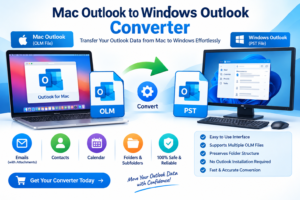
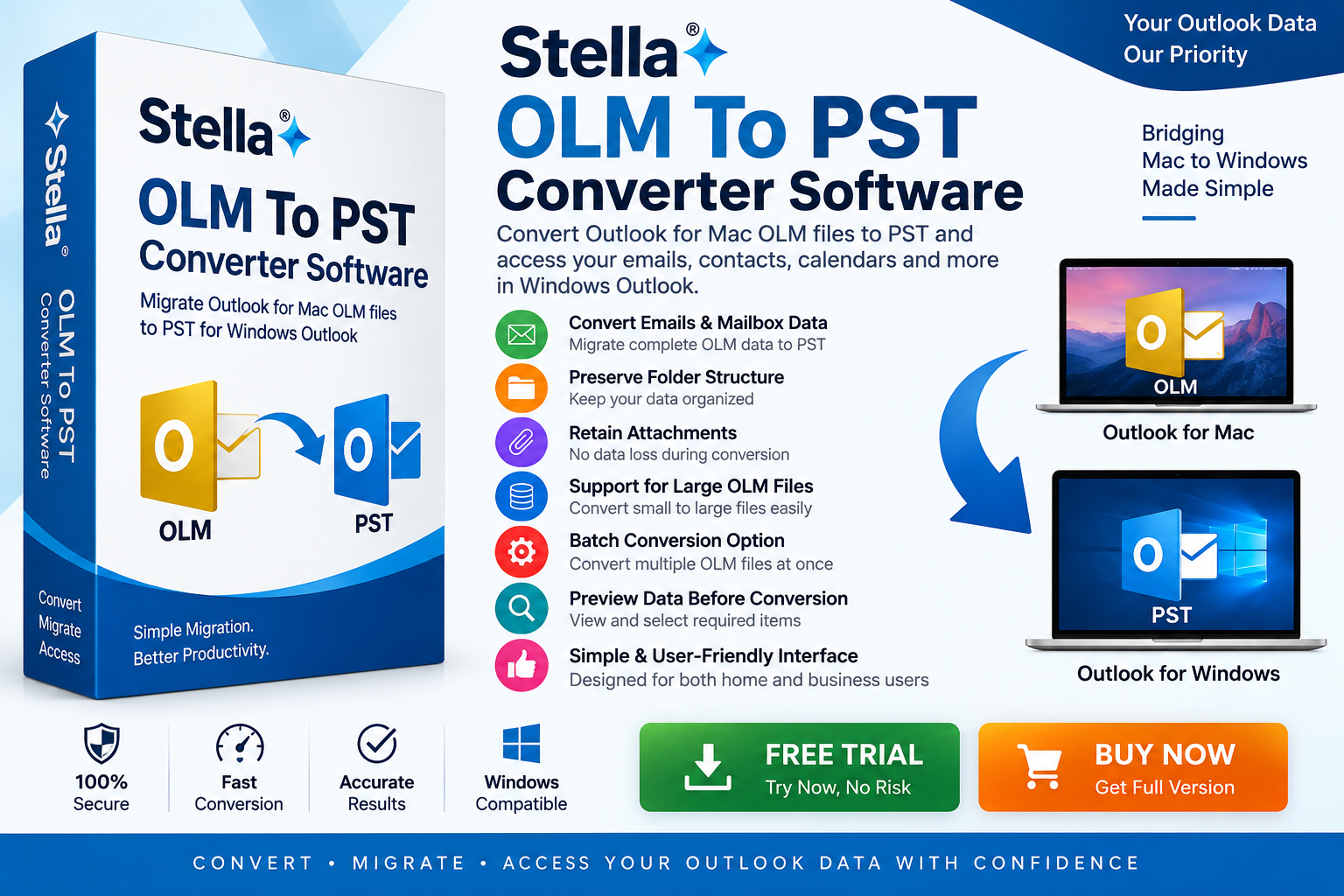
Moving from Outlook for Mac to Outlook for Windows can create a common data-migration challenge: Outlook for Mac uses the OLM file format, while Windows Outlook commonly uses PST for local Outlook data.
So, how do you convert OLM to PST on Windows?
Quick Answer: To convert OLM to PST on Windows, you generally need to process the OLM file with a compatible OLM to PST Converter Software and create a PST file. You can then open or import the PST into a compatible Outlook for Windows environment. The exact workflow depends on your Outlook version and the type of OLM data you need to migrate.
This guide explains the process, available methods, technical considerations, and best practices for converting OLM files to PST on Windows.
What Is an OLM File?
An OLM file is an Outlook data archive associated with Outlook for Mac. It can contain mailbox information such as:
- Emails
- Attachments
- Contacts
- Calendars
- Tasks
- Custom folders
- Archived mailbox data
For example, an Outlook for Mac user might export mailbox information into:
Business-Archive.olm
If that user later moves to a Windows computer, the OLM file may not be directly usable in the same way as a PST.
This creates the need for an OLM to PST conversion.
Why Convert OLM to PST?
The primary reason is platform migration.
A typical scenario looks like this:
Outlook for Mac → OLM File → Windows Computer → PST → Outlook for Windows
Converting OLM to PST can be useful when:
- Switching from Mac to Windows
- Migrating historical Outlook data
- Accessing an old OLM archive
- Moving business emails to Windows Outlook
- Consolidating mailbox archives
- Preserving email attachments and folders
For organizations, this can be especially important when employees change computers or operating systems.
Can You Convert OLM to PST Directly on Windows?
Yes, depending on the software and workflow you choose.
The important point is that OLM is not simply another extension of PST. They are different data formats associated with different Outlook environments.
Therefore, renaming:
example.olm → example.pst
will not convert the file.
The data structure must actually be processed and exported into a compatible PST format.
Method 1: Use OLM to PST Converter Software on Windows
For users who already have an OLM file and need a PST output, a dedicated converter is often the most straightforward approach.
A typical conversion workflow is:
Select OLM → Scan OLM → Preview Data → Select PST → Convert → Verify PST
Step 1: Create a Backup
Before starting, make a copy of your original OLM file.
For example:
Original: Mailbox.olm
Working copy: Mailbox_Backup.olm
Keep the original untouched throughout the migration.
Step 2: Install an OLM to PST Converter
Choose a reputable OLM to PST Converter Software that supports your OLM file and provides PST output.
Check the software’s:
- OLM compatibility
- Windows compatibility
- PST support
- Maximum file-size limitations
- Attachment handling
- Folder preservation
- Batch conversion capabilities
Avoid relying solely on marketing claims. Test the software with a copy of your data before conducting a large migration.
Step 3: Add the OLM File
Launch the converter and select your OLM file.
Some applications allow you to:
- Browse for an OLM file
- Add multiple OLM files
- Scan folders
- Process files in batches
If you have only one archive, simply select the required OLM file.
Step 4: Scan the OLM File
The software will analyze the file structure and identify available mailbox data.
Depending on the application, you may see folders such as:
- Inbox
- Sent Items
- Drafts
- Deleted Items
- Contacts
- Calendar
- Archive
- Custom folders
Allow the scan to complete before beginning the export.
Step 5: Preview the Mailbox Data
A preview feature can be particularly useful.
Before conversion, check whether you can see:
- Email subjects
- Sender information
- Recipient information
- Dates
- Message content
- Attachments
- Folder structure
This gives you an opportunity to confirm that the OLM contains the expected information.
Step 6: Select PST as the Output Format
Choose:
Export/Save As → PST
If the software supports multiple output formats, make sure PST is selected rather than another format such as EML, MBOX, or MSG.
You may also have options to select specific folders.
Step 7: Choose the Destination
Select a folder where the resulting PST should be saved.
Make sure the destination has sufficient free disk space.
For large OLM files, the output PST can require substantial storage.
Step 8: Start the Conversion
Start the OLM-to-PST conversion process.
The software will process the mailbox data and create the PST file.
The duration can vary depending on:
- OLM size
- Number of emails
- Number of attachments
- Computer performance
- Storage speed
- Software implementation
- Number of files being processed
Avoid shutting down the computer during a long conversion unless the software explicitly supports pausing.
Method 2: Migrate Through an Email Account
A different approach is possible when the mailbox is still available through an online email account.
The general workflow can be:
Outlook for Mac → Mail Server → Outlook for Windows
Instead of converting an independent OLM archive, the mailbox data is synchronized through the email service.
This may work well when:
- The original account is active.
- Messages are stored on the server.
- Both computers can access the account.
- The required mailbox data is synchronized.
However, it may not solve the problem if your OLM contains local-only archived data.
For example, if an old email exists only inside the OLM archive and isn’t stored on the server, configuring the same account on Windows won’t necessarily recover that archived message.
Which Method Should You Choose?
The answer depends on your situation.
| Situation | Suitable Approach |
|---|---|
| Active mailbox available online | Account/server migration may work |
| Independent OLM archive | OLM-to-PST conversion |
| No Mac available | Dedicated OLM-to-PST software |
| Large OLM archive | Converter with large-file support |
| Multiple OLM files | Batch-capable converter |
| Need selected folders | Converter with selective export |
| Need attachments | Verify attachment preservation |
How to Open the Converted PST in Outlook for Windows
Once the OLM-to-PST conversion is complete, you need to make the PST available in your Windows Outlook environment.
In compatible classic Outlook versions, users can generally access PST-related functionality through the Outlook data-file or import/export options.
A typical workflow may involve:
Outlook → File → Open & Export → Import/Export
You can then select the appropriate option for working with an Outlook data file.
The exact menu names and capabilities can differ between Outlook versions, particularly between classic Outlook and new Outlook for Windows.
Therefore, verify the procedure for the specific Outlook version installed on your computer.
Can You Convert OLM to PST Without Outlook?
Depending on the converter, yes.
Some dedicated OLM-to-PST applications are designed to process the OLM file independently rather than requiring the original Outlook for Mac installation.
This can be useful if:
- Your Mac is no longer available.
- Outlook for Mac has been removed.
- You only have the exported OLM archive.
- You are performing the migration entirely from Windows.
Always check the software’s system requirements before purchasing or installing it.
How to Convert Large OLM Files to PST
Large OLM archives require additional preparation.
Check Free Disk Space
Don’t assume that the size of the OLM equals the final amount of required disk space.
Leave sufficient room for:
- Temporary processing
- The output PST
- Backup files
- Other application operations
Use a Stable Computer
Avoid starting a large conversion immediately before a scheduled shutdown or restart.
Test First
If you have a 20 GB archive, consider testing a smaller representative file first if available.
Check:
- Email content
- Attachments
- Folder structure
- Dates
- Contacts
- Calendar entries
Then proceed with the larger migration.
How to Convert Multiple OLM Files to PST
Businesses may have several OLM files belonging to different users or archive periods.
For example:
Sales.olmSupport.olmAccounts.olmArchive2023.olm
If your selected application supports batch conversion, multiple files can potentially be processed in one workflow.
However, don’t assume batch conversion means all files will automatically be merged into one PST.
Some applications may create:
Sales.pst
Support.pst
Accounts.pst
while others may provide different output options.
Check the software’s documentation before beginning a large batch job.
Important Data-Integrity Checks
A conversion isn’t complete simply because a PST file has been created.
After conversion, verify the output.
Check Emails
Open several messages from different folders.
Check Attachments
Open or inspect several attachments.
Check Folder Structure
Confirm that important custom folders were transferred.
Check Dates
Verify that message dates and other metadata appear correctly.
Check Contacts and Calendars
If these items are important to your migration, confirm that they are available in the output.
Common OLM to PST Conversion Problems
OLM File Is Not Recognized
The software may not support your particular OLM version or file structure.
Solution: Check compatibility before processing the complete archive.
Conversion Is Very Slow
Large archives containing many attachments can take significant time.
Solution: Check system resources, storage capacity, and application requirements.
Attachments Are Missing
Some migration methods may not handle every type of mailbox data identically.
Solution: Test several emails containing different attachments before completing the migration.
Folder Structure Is Different
The destination may organize folders differently.
Solution: Compare the original mailbox structure with the converted PST.
PST Cannot Be Opened
Possible causes include an incomplete conversion, PST corruption, compatibility issues, or problems with the target Outlook environment.
Solution: Verify the conversion completed successfully and test the PST in a compatible Outlook installation.
Best Practices for OLM to PST Conversion
Follow these practices for a safer migration:
- Back up the original OLM file.
- Never rename OLM to PST manually.
- Use a copy for testing.
- Check OLM/PST compatibility.
- Test a small conversion first.
- Keep sufficient storage available.
- Verify emails and attachments after conversion.
- Check contacts and calendars when required.
- Keep the original OLM until migration is confirmed.
- Use reputable software from a trustworthy source.
For confidential business archives, also review whether the conversion takes place locally or requires uploading mailbox data to an external server.
Frequently Asked Questions
How do I convert OLM to PST on Windows?
Use compatible OLM-to-PST conversion software to load the OLM file, scan its contents, select PST as the output format, and export the mailbox data.
Can I convert OLM to PST without a Mac?
Yes. Some dedicated OLM-to-PST tools can process OLM files directly on Windows without requiring Outlook for Mac.
Can I convert OLM to PST for free?
Free tools may exist, but their limitations can include file-size restrictions, limited data types, or restricted export capabilities. Evaluate the tool carefully before using it with important data.
Does OLM to PST conversion preserve attachments?
Many dedicated converters support attachments, but you should verify this with a test conversion before migrating an important archive.
Can I convert multiple OLM files to PST?
Yes, if the selected application supports batch processing.
Can I convert a large OLM file?
Yes, provided the software supports the file and your computer has sufficient storage and resources.
Final Thoughts
Converting OLM to PST on Windows is primarily a mailbox-format migration task. Because OLM and PST are different Outlook data formats, simply changing the file extension will not work.
For an independent OLM archive, the practical workflow is generally:
Backup OLM → Scan OLM → Select PST → Convert → Verify PST → Open/Import in Compatible Outlook
A dedicated OLM to PST Converter Software can simplify this process, particularly when dealing with large archives, multiple OLM files, attachments, or complex folder structures.
The most important part of the migration is not simply producing a PST file. The goal is to preserve the mailbox data you actually need and make it accessible in your Windows Outlook environment.
Before deleting the original OLM, thoroughly check the converted PST for emails, attachments, folders, contacts, and calendars. With proper preparation, testing, and verification, you can make an OLM-to-PST migration considerably more organized and reliable.