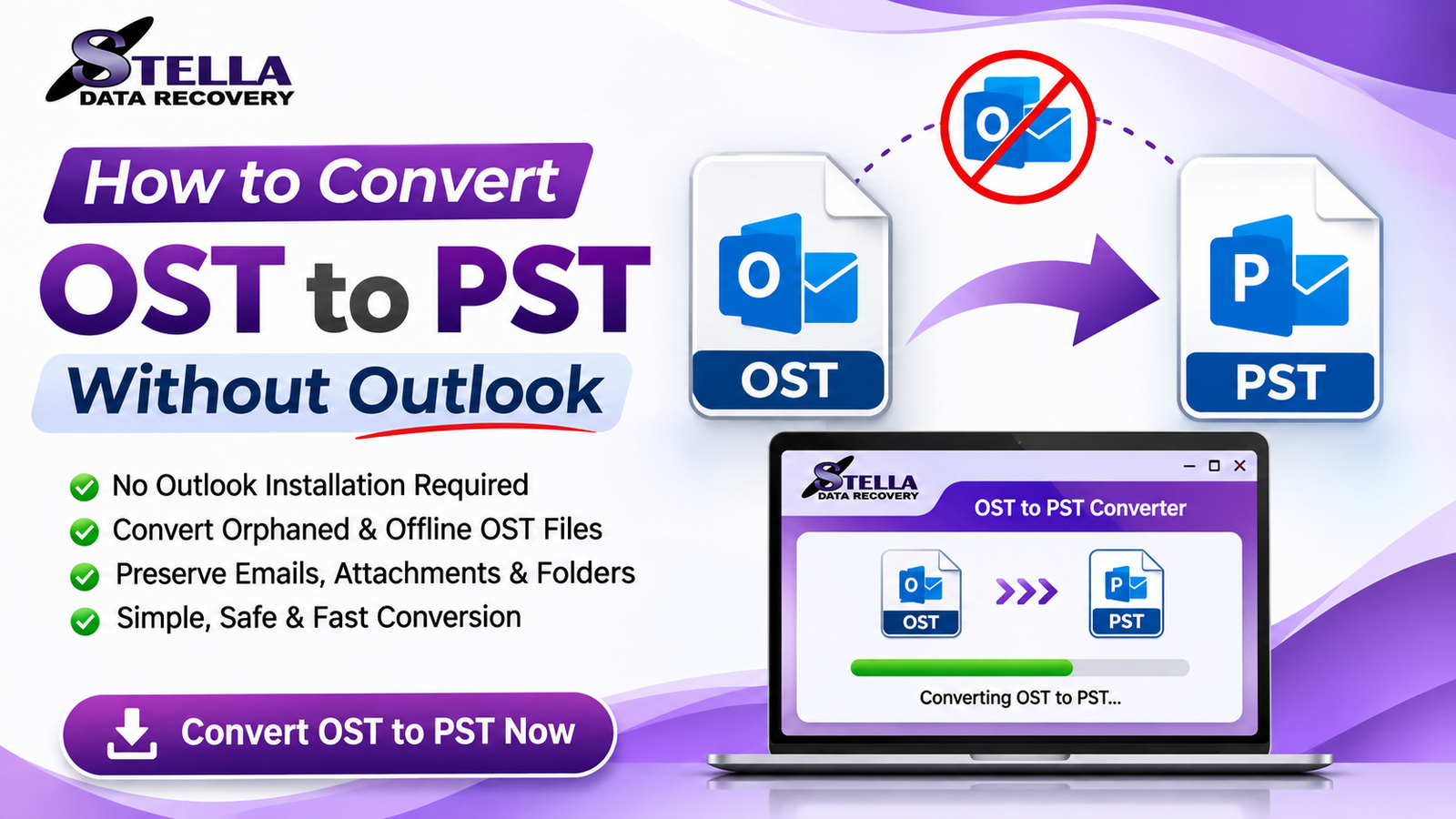
Microsoft Outlook uses OST (Offline Storage Table) files to store synchronized mailbox data locally on a computer. These files allow users to access emails, contacts, calendars, tasks, and other mailbox information even when an internet connection is unavailable. However, accessing OST data can become difficult when an Outlook profile is deleted, an Exchange account is disconnected, or the original mailbox server is unavailable.
One common challenge is converting an OST file into PST format without installing or accessing Microsoft Outlook. Since PST (Personal Storage Table) files are portable Outlook data files, they are useful for email backup, migration, archiving, and transferring mailbox information between systems.
But how can you convert OST to PST without Outlook? This guide explains the available approaches, their limitations, and how dedicated OST to PST converter software can simplify the process.
What Is OST to PST Conversion?
OST to PST conversion is the process of extracting mailbox information from an Offline Storage Table file and saving it in Personal Storage Table format.
An OST file is generally associated with an Outlook profile and Exchange, Microsoft 365, or another supported mail account. A PST file, on the other hand, can be stored independently and opened in compatible Outlook installations.
The conversion process is particularly useful when users need to:
- Access mailbox data without the original Outlook profile.
- Recover information from orphaned OST files.
- Transfer emails to another computer.
- Create an independent mailbox backup.
- Migrate Outlook data between accounts.
- Preserve important email attachments and folders.
Why Convert OST to PST Without Outlook?
There are several situations where accessing Microsoft Outlook is not possible or convenient.
1. Outlook Is Not Installed
Some users have OST files saved on their computers but no longer have Microsoft Outlook installed. A dedicated conversion utility can help extract supported mailbox data without requiring the original Outlook application.
2. Exchange Server Is Unavailable
When an Exchange account becomes disconnected or the server is unavailable, users may need to access locally stored OST information. Conversion software may help retrieve accessible mailbox content from the existing file.
3. Orphaned OST Files
An orphaned OST file is no longer connected to its original Outlook profile. This situation can occur after profile deletion, account removal, or system migration. Specialized software can help recover accessible information from such files.
4. Outlook Profile Is Deleted
Deleting an Outlook profile can make its associated OST file difficult to access through conventional methods. Converting the file into PST format provides another way to preserve and access supported mailbox information.
5. Mailbox Backup and Migration
PST files are commonly used for mailbox backup and migration. Converting OST data into PST format makes it easier to transfer supported mailbox content between compatible systems.
Methods to Convert OST to PST Without Outlook
There are different approaches to OST conversion. The appropriate method depends on whether the original Outlook profile and mailbox are still accessible.
Method 1: Use a Professional OST to PST Converter Software
A dedicated OST to PST converter is a practical option when Microsoft Outlook is unavailable or the original mailbox profile cannot be accessed.
These applications are designed to scan OST files, identify mailbox components, and export supported information into PST format.
General conversion steps:
- Download and install a reputable OST to PST converter on your Windows computer.
- Launch the application.
- Select the OST file from your computer.
- Start the scanning process.
- Preview the recoverable mailbox information, if preview functionality is supported.
- Select the required emails, folders, contacts, calendars, or other supported items.
- Choose PST as the export format.
- Specify a destination folder.
- Start the conversion process.
- Verify the resulting PST file using a compatible application.
Advantages:
- Does not necessarily require the original Outlook profile.
- Can support orphaned and inaccessible OST files, depending on the software.
- May provide selective mailbox export.
- Can simplify bulk mailbox conversion.
- Can preserve supported folder structures and attachments.
Always check the software’s system requirements, supported OST versions, export limitations, and trial restrictions before purchasing.
Method 2: Use Outlook’s Built-in Export Feature (When Outlook Is Available)
Although this method does not meet the requirement of working without Outlook, it is worth understanding as an alternative.
If the original Outlook profile and mailbox are still accessible, Microsoft’s built-in export functionality can be used to create a PST backup.
General procedure:
- Open Microsoft Outlook.
- Navigate to the Import/Export option.
- Select the export-to-file option.
- Choose Outlook Data File (.pst).
- Select the mailbox folders.
- Choose a destination.
- Complete the export process.
This approach depends on a functioning Outlook installation and an accessible mailbox. It is not suitable for every orphaned or disconnected OST scenario.
Method 3: Use an OST Recovery and Conversion Utility
Some OST recovery applications provide both scanning and conversion capabilities.
These tools can be useful when an OST file is damaged, inaccessible, or disconnected from its original account. However, the actual recovery results depend on the file’s condition and the application’s capabilities.
Before conversion, users should create a backup of the original OST file to avoid accidental changes or data loss.
How to Choose the Best OST to PST Converter Software
Selecting the right software is essential when handling important business or personal mailbox data.
Consider the following features before making a decision:
| Feature | Why It Matters |
|---|---|
| OST file scanning | Identifies accessible mailbox information |
| PST export | Saves mailbox data in PST format |
| Attachment preservation | Helps retain supported email attachments |
| Folder hierarchy | Maintains the original mailbox organization where supported |
| Bulk conversion | Saves time when processing multiple files |
| Preview functionality | Allows users to inspect available mailbox data |
| Compatibility | Supports the required Windows and OST environments |
| Selective export | Allows users to export specific folders |
| Recovery support | Helps with supported orphaned or inaccessible files |
A reliable application should also provide clear instructions, transparent pricing, technical support, and a trial version where available.
Common Problems During OST to PST Conversion
Users may encounter several issues during the conversion process.
1. Corrupted OST Files
File corruption can prevent successful scanning or extraction. The results depend on the extent of the damage and whether the software can interpret the remaining file structures.
2. Large OST Files
Large mailbox files may require additional storage space, processing time, and system resources. Ensure sufficient free disk space before starting.
3. Inaccessible OST Files
An inaccessible OST file may result from permission restrictions, file damage, or profile-related issues. Check file permissions and use a suitable recovery utility.
4. Missing Email Attachments
Not every conversion method handles attachments identically. Verify that the selected application supports attachment export and inspect the resulting PST file.
5. Incomplete Conversion
Some mailbox items may be unavailable because of corruption, synchronization issues, or unsupported data structures. Review the conversion report and compare the output with the available source data.
Benefits of Converting OST to PST Without Outlook
Using a suitable conversion utility offers several potential benefits:
- Independent access: Extract supported mailbox information without relying on the original Outlook profile.
- Flexible migration: Transfer mailbox data into a compatible PST environment.
- Data backup: Maintain an additional copy of important mailbox information.
- Time efficiency: Bulk processing can reduce manual work.
- Selective recovery: Export specific mailbox folders when supported.
- Better accessibility: Preserve useful mailbox information for future reference.
Frequently Asked Questions (FAQs)
1. Can I convert OST to PST without Outlook?
Yes. Dedicated OST to PST converter applications can process supported OST files without requiring the original Outlook profile. Check individual software requirements before use.
2. How do I convert an orphaned OST file to PST?
Use a suitable OST recovery and conversion application. Select the orphaned OST file, scan its contents, preview available mailbox items, and export supported data into PST format.
3. Is it possible to convert OST to PST without an Exchange Server?
Yes, provided the OST file contains accessible mailbox data and the selected conversion application supports processing it independently of the original Exchange Server.
4. Does OST to PST conversion preserve attachments?
Many professional conversion applications support email attachment export. However, preservation depends on the software, file condition, and supported data types. Always verify the output.
5. Can I convert multiple OST files to PST?
Some dedicated OST to PST converter applications offer batch conversion capabilities. Check whether the software supports multiple input files and individual or combined PST exports.
6. Is free OST to PST converter software available?
Some applications offer free trials or limited free functionality. Review export restrictions, file-size limitations, and supported features before selecting a solution.
Conclusion
Converting OST to PST without Outlook is possible with dedicated OST to PST conversion software. This approach is particularly useful when the original Outlook profile has been deleted, the Exchange Server is unavailable, or an OST file has become orphaned.
Before choosing a conversion method, evaluate the application’s compatibility, scanning capabilities, attachment handling, folder preservation, and export options. Always keep an unchanged backup of the original OST file before attempting recovery or conversion.
For users looking for a dedicated mailbox conversion solution, Stella Data Recovery can be explored as a software brand offering data recovery and email conversion solutions. Evaluate its OST to PST converter features and supported conversion scenarios to determine whether it meets your requirements.
Explore OST to PST Converter Software from Stella Data Recovery and simplify your Outlook mailbox migration process.