Yes, you can convert an OST file to MBOX without having Microsoft Outlook installed, provided you use a compatible third-party OST to MBOX conversion tool. This can be especially useful when the original Outlook profile is unavailable, an Exchange account has been disconnected, or you have an orphaned OST file containing important mailbox data.
OST and MBOX are different email storage formats. An OST file is associated with Outlook and commonly contains cached mailbox data, while MBOX is used by several email applications and email-management systems. Because these formats use different structures, simply changing the file extension is not enough. A proper conversion process is required.
This guide explains how to convert OST to MBOX without Outlook, why users may need this process, what limitations exist, and how to select appropriate OST to MBOX Converter Software.
What Is an OST File?
OST stands for Offline Storage Table. It is an Outlook data file used to maintain a local, synchronized copy of mailbox information associated with supported Microsoft messaging environments.
An OST may contain:
- Emails
- Attachments
- Inbox and Sent Items
- Drafts
- Custom folders
- Calendar information
- Contacts
- Other cached mailbox information
Unlike a PST, an OST is generally associated with an Outlook profile and a server-based mailbox environment.
When the original account or Outlook profile is no longer available, accessing an OST can become difficult.
What Is an MBOX File?
MBOX is a mailbox storage format used by various email applications and systems.
Unlike OST, which is closely associated with Microsoft’s Outlook ecosystem, MBOX is supported by multiple email applications. This makes MBOX useful in certain email migration and archival scenarios.
However, an OST file cannot simply be renamed from:
mailbox.ost
to:
mailbox.mbox
Renaming the extension does not convert the internal mailbox structure. The data must be properly extracted and converted.
Why Convert OST to MBOX Without Outlook?
There are several situations where users may need to process an OST file without Outlook.
1. Outlook Is Not Installed
A user may have received an OST archive but no longer have Microsoft Outlook installed on the computer.
2. Original Outlook Profile Is Missing
An OST can become orphaned when its original Outlook profile is deleted, replaced, or becomes inaccessible.
3. Exchange Account Is No Longer Available
If the original Exchange mailbox is unavailable, reconnecting the OST through the original account may not be possible.
4. Employee Departure
Organizations may need to preserve authorized email data from a former employee’s computer or mailbox environment.
5. Migration to an MBOX-Based Application
Users moving to an MBOX-compatible email client may need to convert historical Outlook data before importing it.
Can I Convert OST to MBOX Without Outlook?
Yes. A specialized OST to MBOX converter can potentially process the OST file independently of an active Outlook installation.
The exact process depends on the software. Some applications use their own parsing technology to read the OST structure, extract available mailbox content, and generate MBOX output.
This approach can be particularly useful for orphaned or disconnected OST files, where the original Outlook profile is no longer available.
However, not every OST file can necessarily be converted. The condition of the file, its structure, and the capabilities of the selected software all affect the result.
How to Convert OST to MBOX Without Outlook
The general conversion process can be completed through the following steps.
Step 1: Locate the OST File
First, identify the OST file that needs to be converted.
If the file is stored on an old computer or backup drive, copy it to a working location.
Step 2: Create a Backup
Always create a duplicate before performing any conversion or recovery operation.
Keep the original OST unchanged so that you have a source copy if something goes wrong.
Step 3: Install an OST to MBOX Converter
Select a converter that specifically supports OST files and MBOX export without requiring Outlook.
Check the vendor’s documentation for:
- Supported Windows versions
- OST compatibility
- MBOX export
- Outlook requirements
- Orphaned OST support
- File-size limitations
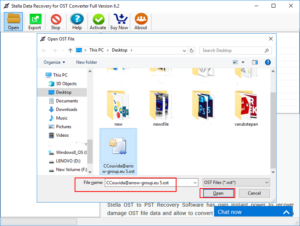
Step 4: Add the OST File
Launch the software and select the OST file.
The application should scan the file and identify available mailbox folders and email content.
Step 5: Preview the Mailbox
If preview functionality is available, review the mailbox before conversion.
Look for folders such as:
- Inbox
- Sent Items
- Drafts
- Deleted Items
- Custom folders
Previewing the data helps determine whether the OST contains the information you need.
Step 6: Select the Required Data
Some applications allow users to convert the complete OST or select specific folders.
Selective conversion can be useful when only certain mailbox data is required.
Step 7: Choose MBOX
Select MBOX as the destination format.
Specify a location where the resulting MBOX file or files will be stored.
Step 8: Start the Conversion
Start the conversion process.
The software reads the supported data from the OST and converts it into MBOX format.
The processing time depends on factors such as:
- OST file size
- Number of messages
- Attachment volume
- File condition
- Computer performance
- Available storage
Step 9: Verify the MBOX Data
After conversion, open the MBOX data in the intended email application.
Check several messages and folders to verify that the migration was successful.
Pay particular attention to messages containing attachments or complex HTML formatting.
Does OST to MBOX Conversion Preserve Attachments?
Many dedicated OST to MBOX converters support email attachment conversion, but the exact results depend on the software and source file.
Before converting a large mailbox, test messages containing different attachment types, such as:
- PDF documents
- Word files
- Excel spreadsheets
- Images
- Multiple attachments
After conversion, confirm that the attachments are accessible in the destination application.
Can I Convert an Orphaned OST to MBOX Without Outlook?
Yes, specialized conversion software may be able to process an orphaned OST without the original Outlook profile or Exchange connection.
This is one of the most important use cases for independent OST conversion software.
However, an orphaned OST does not automatically guarantee successful conversion. If the file is heavily corrupted or contains incomplete cached information, some mailbox content may not be recoverable.
Therefore, previewing the OST before conversion is particularly valuable.
Can a Corrupted OST Be Converted Without Outlook?
A corrupted OST may present additional challenges.
If the file has structural damage, a standard converter may not be able to read all of its contents. Recovery-oriented software may provide additional extraction capabilities, but the results depend on the severity and type of corruption.
A sensible workflow is:
Backup → Scan → Preview → Extract → Convert → Verify
Avoid making changes to the only copy of a damaged OST.
What Are the Benefits of Converting OST Without Outlook?
No Active Outlook Profile Required
Users may be able to process an OST independently of its original Outlook configuration.
Useful for Orphaned Files
Disconnected OST files can potentially be analyzed and converted.
Easier Email Migration
MBOX output can be used with compatible email applications.
Selective Export
Depending on the software, users may convert specific folders rather than the entire mailbox.
Reduced Manual Work
Automated conversion is generally more efficient than manually transferring individual messages.
What Should You Look for in OST to MBOX Converter Software?
When selecting a tool, consider the following features:
- OST file compatibility
- MBOX export capability
- Orphaned OST support
- Preview functionality
- Selective folder conversion
- Attachment preservation
- Batch conversion
- Large OST support
- Local/offline processing
- Clear system requirements
- Trial or demo availability
Avoid choosing software based solely on claims such as “100% recovery” or “instant conversion.” Real-world results depend on the condition and structure of the source OST.
OST to MBOX Without Outlook vs. Manual Methods
Manual migration can become complicated when Outlook is unavailable.
| Factor | Manual Approach | Dedicated Converter |
|---|---|---|
| Requires Outlook | Often | May not |
| Orphaned OST support | Limited | Often available |
| Bulk conversion | Difficult | Often supported |
| Folder selection | Limited | Often supported |
| Attachment handling | Manual/variable | Automated where supported |
| Large mailbox processing | Time-consuming | More systematic |
| Preview | Usually limited | Often available |
The appropriate approach depends on the condition of the OST and the requirements of the destination environment.
Best Practices Before Converting OST to MBOX
Follow these recommendations to reduce migration risks:
- Back up the original OST file.
- Work with a copy rather than the only original.
- Verify the converter supports your OST.
- Check whether Outlook installation is required.
- Preview the mailbox when possible.
- Test a small folder first.
- Verify attachments after conversion.
- Make sure sufficient storage is available.
- Keep the original OST until the migration is verified.
- Only process files you are authorized to access.
Frequently Asked Questions
Can I convert OST to MBOX without Outlook?
Yes. Some specialized OST to MBOX conversion applications can process OST files without requiring Microsoft Outlook to be installed or an active Outlook profile to be available.
Can I convert an orphaned OST without Outlook?
Yes, depending on the condition of the OST and the capabilities of the conversion software. Specialized tools may be designed to read disconnected or orphaned OST files.
Can I convert OST to MBOX for free?
Free tools may exist, but they can have limitations involving file size, supported OST structures, attachments, folders, or the number of emails. A trial version of professional software can be useful for testing compatibility.
Does OST to MBOX conversion preserve attachments?
Many dedicated tools support attachments, but users should test representative messages before completing a large migration.
Can a large OST file be converted to MBOX?
Large OST files can potentially be converted, but processing requirements depend on the file size, computer resources, software capabilities, and amount of mailbox data.
Can a damaged OST be converted to MBOX?
Possibly. The outcome depends on the severity of the damage and whether the software can read the affected parts of the OST.
Conclusion
You can convert OST to MBOX without Outlook by using compatible third-party OST to MBOX conversion software. This method can be especially useful when Outlook is unavailable, the original Outlook profile has been removed, or an OST file has become orphaned.
The conversion generally involves selecting the OST, scanning and previewing its mailbox content, choosing MBOX as the destination, converting the required data, and verifying the resulting mailbox.
However, conversion success depends on the OST’s condition, available data, software compatibility, and the type of mailbox content involved. There is no universal guarantee that every OST file can be completely converted.
For the safest migration, maintain an original backup, test the converter with a copy of the OST, verify messages and attachments, and retain the source file until the MBOX migration has been fully confirmed.