Email has become one of the most important sources of business and personal information. Important conversations, invoices, customer communication, attachments, project details, and historical records are often stored inside an IMAP mailbox. While IMAP makes email accessible across multiple devices, synchronization is not the same as an independent backup.
If you are planning to buy IMAP Backup Software, it is important to understand what the software should do, which features matter, and how to evaluate a solution before purchasing it. The right IMAP backup tool can help you create local copies of mailbox data for archiving, migration, recovery, and long-term data protection.
What Is IMAP Backup Software?
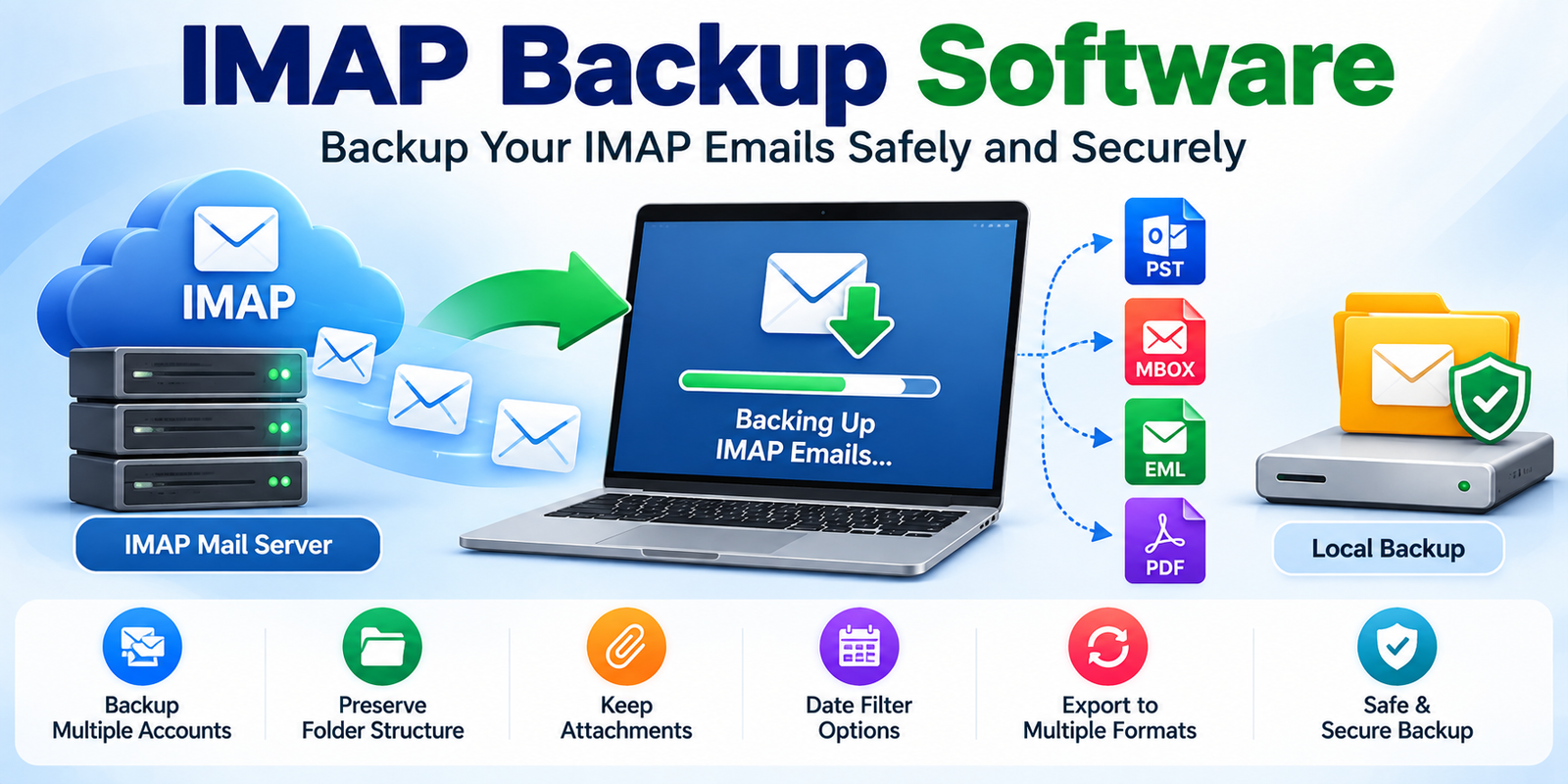
IMAP Backup Software is a specialized application designed to download and preserve email data from an IMAP server.
A typical workflow looks like this:
IMAP Server → Backup Software → Local Storage / Export File
Depending on the software, mailbox data may be exported to formats such as:
- PST
- MBOX
- EML
- MSG
- HTML
- Other supported formats
The available output formats vary between products, so users should check the specifications before purchasing.
Unlike ordinary email synchronization, backup software creates an additional copy that can be stored separately from the live mailbox.
Why Buy IMAP Backup Software?
You may be able to access your IMAP emails through webmail or an email client, but that does not necessarily give you a convenient independent backup.
Buying dedicated IMAP backup software can be useful when you need to:
- Back up an entire IMAP mailbox
- Archive historical emails
- Protect important business correspondence
- Back up multiple email accounts
- Prepare for an email-server migration
- Export emails to another format
- Create local copies of cloud-hosted email
- Restore or migrate mailbox data later
For businesses, maintaining an independent copy of important email data can also simplify certain migration and archiving workflows.
IMAP Synchronization vs. IMAP Backup
One of the most important concepts to understand before buying backup software is the difference between synchronization and backup.
IMAP Synchronization
IMAP synchronization keeps the mailbox consistent between the mail server and connected email applications.
For example:
Server → Laptop → Smartphone
If a message is deleted and that deletion synchronizes across the devices, the message may no longer be available through the synchronized mailbox.
IMAP Backup
A backup creates a separate copy:
IMAP Server → Backup Software → Independent Storage
The backup can then be retained separately from the live mailbox.
Therefore, an IMAP backup tool is intended for data preservation, while IMAP synchronization is primarily designed for access and consistency across devices.
Important Features to Consider Before You Buy
Not every IMAP backup application has the same capabilities. Before purchasing, evaluate the following features.
1. Complete Mailbox Backup
If you need to protect an entire mailbox, look for software that can process multiple folders rather than requiring you to save messages individually.
Important folders may include:
- Inbox
- Sent
- Drafts
- Archive
- Spam
- Trash
- Custom folders
A complete mailbox backup can make future restoration or migration easier.
2. Selective Folder Backup
Sometimes you do not need every message.
For example, you might want to back up only:
Inbox + Sent + Customer Archive
Selective folder backup can reduce processing time and storage requirements.
3. Multiple Account Support
Businesses and administrators may manage several IMAP accounts.
If you have multiple mailboxes, look for a solution that supports multiple accounts or batch processing according to its license terms.
This can be more efficient than backing up each account manually.
4. Attachment Preservation
Email attachments can contain contracts, invoices, spreadsheets, presentations, photographs, and other important documents.
Before purchasing software, verify that attachments are preserved during backup.
A good test is to perform a trial backup containing different types of attachments and then open the exported messages.
5. Folder Structure Preservation
Mailbox organization becomes increasingly important as the number of messages grows.
A tool that preserves the original folder hierarchy can make the resulting archive easier to navigate.
For example:
Inbox
→ Customers
→ Projects
→ Finance
→ Internal Communication
Maintaining this structure can make historical email management more convenient.
6. Multiple Export Formats
Consider what you intend to do with the backup later.
For example:
IMAP → PST
Useful for Outlook-based workflows.
IMAP → MBOX
Useful for applications that support MBOX.
IMAP → EML
Useful when individual email files are required.
If you expect to migrate between different platforms in the future, multiple export options can provide additional flexibility.
7. Date-Based Filtering
A date filter can be helpful when you need to archive only a particular period.
For example:
January 2024 – December 2024
Instead of processing the complete mailbox, you may be able to export only messages within the selected period.
8. Preview Capability
A preview function lets you inspect mailbox contents before starting the backup.
This can help you identify:
- Required folders
- Important messages
- Message counts
- Attachments
- Older correspondence
Previewing data can also reduce the risk of selecting the wrong mailbox or folder.
How to Buy IMAP Backup Software
The purchasing process should begin with identifying your requirements.
Step 1: Determine Your Backup Requirements
Ask yourself:
- How many IMAP accounts need backup?
- How large are the mailboxes?
- Do I need complete or selective backup?
- Which output format do I need?
- Do I need attachments?
- Do I need folder preservation?
- Will I perform a migration later?
Your answers will help narrow down suitable software.
Step 2: Check System Compatibility
Before purchasing, verify the software’s current system requirements.
Check:
- Supported Windows versions
- Supported macOS versions, if applicable
- Required RAM
- Required storage
- Supported IMAP providers
- Authentication requirements
This is especially important when working with modern email services that use OAuth or other authentication methods.
Step 3: Look for a Free Trial or Demo
If the vendor provides a trial version, test it before buying.
Use a copy or non-critical mailbox where possible.
Test:
- Account connection
- Folder scanning
- Email preview
- Attachment handling
- Output generation
- Folder preservation
- Restoration or import
A small test can reveal compatibility issues before you process an entire mailbox.
Step 4: Review Licensing
Check the license carefully.
Important considerations include:
- Number of accounts supported
- Number of computers permitted
- Personal vs. commercial use
- License duration
- Upgrade policy
- Technical support
- Activation requirements
Do not assume that every license supports unlimited accounts or computers.
How IMAP Backup Software Helps With Migration
IMAP backup tools can also be useful when moving between email providers.
For example:
Old IMAP Server → Backup → New Email Server
Creating a backup before migration gives you an additional copy of the original mailbox.
You can also use exported data as an intermediate source for certain migration workflows.
This is particularly useful when moving:
- Between email providers
- Between hosting companies
- From business email to another server
- From an old mailbox to a new account
- Between compatible email applications
How to Back Up IMAP Emails After Buying the Software
A typical process is straightforward.
1. Install the Software
Install the purchased IMAP backup application on a supported computer.
2. Add the IMAP Account
Enter the account information and complete the required authentication.
3. Scan the Mailbox
Allow the software to retrieve available folders and messages.
4. Select Data
Choose the entire mailbox or specific folders.
5. Select the Output
Choose PST, MBOX, EML, or another supported format according to your requirements.
6. Select a Destination
Choose a secure local or external storage location.
7. Start the Backup
Begin the export process and allow it to complete.
8. Verify the Backup
Open sample messages and check:
- Message content
- Sender
- Recipient
- Dates
- Attachments
- Folder structure
- Message count
Keep the original mailbox until you have verified that the backup contains the information you need.
Security Considerations
When you buy IMAP Backup Software, security should be part of your evaluation.
Look for transparent information about:
- How account credentials are handled
- Whether data is processed locally
- Whether mailbox information is uploaded to third-party servers
- Encryption options
- Temporary file handling
- Software updates
- Vendor support
For sensitive business email, an offline or locally processed workflow may be preferable when supported by the product and organizational security requirements.
Common Mistakes to Avoid
Avoid these mistakes when purchasing or using IMAP backup software:
Choosing Only by Price
The cheapest tool may not provide the features you require.
Ignoring Authentication Requirements
Modern email providers may require OAuth, app passwords, or other authentication mechanisms.
Not Testing Attachments
A successful export does not automatically mean every attachment was preserved correctly.
Deleting the Original Mailbox Too Soon
Keep the original data until the backup has been checked.
Ignoring Storage Requirements
Large mailboxes can generate substantial backup files. Make sure sufficient storage is available.
Repeatedly Importing the Same Backup
This can create duplicate messages during restoration.
Frequently Asked Questions
What is the purpose of IMAP backup software?
It creates an independent copy of email data stored on an IMAP server for backup, archiving, migration, or recovery purposes.
Is it worth buying IMAP backup software?
It can be useful when you need structured, repeatable, or large-scale mailbox backup instead of manually saving individual messages.
Can IMAP backup software save emails to PST?
Some products support PST export. Always verify the specific application’s supported output formats.
Can I back up IMAP emails to MBOX?
Yes, software that supports MBOX export can create MBOX-based backups.
Can I back up multiple IMAP accounts?
Some applications support multiple accounts or batch processing. Check the product’s current license limitations.
Should I test the software before buying?
Yes. If a trial version is available, testing it with a representative mailbox is a practical way to verify compatibility and output quality.
Conclusion
Choosing to buy IMAP Backup Software can be a practical step when you need an independent copy of important email data. The right solution can simplify mailbox archiving, migration, local backup, and restoration workflows.
Before purchasing, focus on the features that actually match your requirements: mailbox coverage, selective folders, multiple-account support, attachment preservation, folder structure, export formats, filtering, preview, authentication compatibility, and security.
A sensible workflow is:
Evaluate requirements → Check compatibility → Test a trial → Purchase the appropriate license → Back up IMAP emails → Verify the backup → Store it securely
Most importantly, do not judge a backup only by whether the software says the process completed. Open and verify the resulting data before relying on it as your long-term email backup.