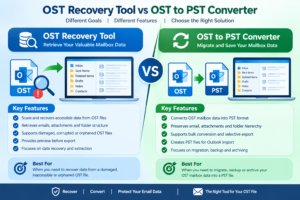
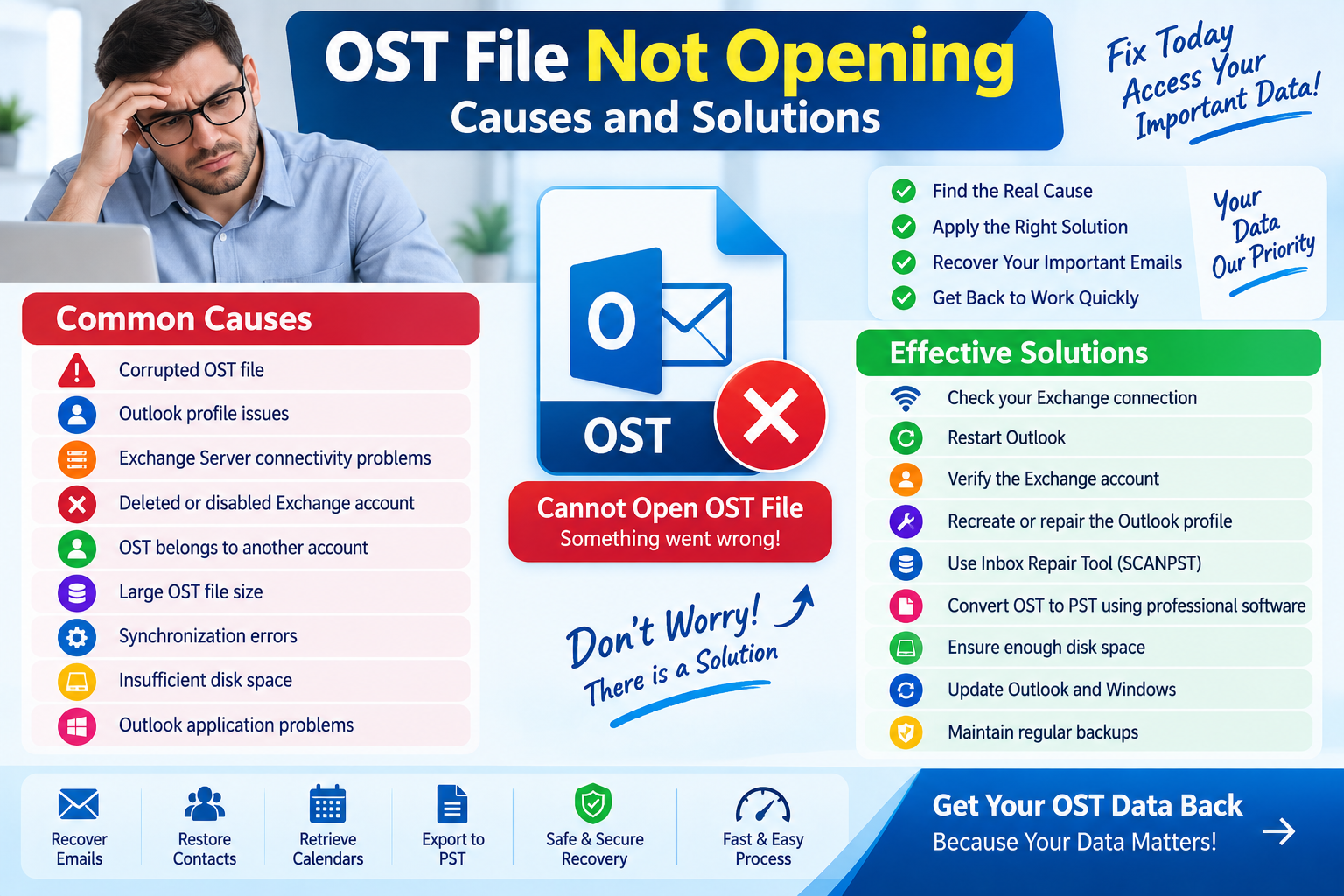
An OST file not opening can be frustrating, especially when it contains important emails, attachments, contacts, calendars, or other Outlook data. The problem can occur for several reasons, including an incorrect Outlook profile, Exchange synchronization issues, an orphaned OST file, file corruption, or an OST that belongs to a different mailbox.
The good news is that the correct solution depends on why the OST file is not opening. If the Exchange account is still active, repairing the Outlook profile or allowing synchronization may solve the problem. If the OST is orphaned or the original Exchange account is no longer available, a specialized OST to PST Converter Software may be a practical recovery option.
This guide explains the common causes and solutions in a simple but technically detailed way.
What Is an OST File?
An OST (Offline Storage Table) is a local Outlook data file associated with supported mail accounts, including Exchange-based accounts.
It allows Outlook to maintain a synchronized local copy of mailbox information so users can continue working with cached data when the server connection is temporarily unavailable.
An OST may contain:
- Emails
- Attachments
- Contacts
- Calendar entries
- Tasks
- Notes
- Custom folders
- Other synchronized mailbox information
An OST is different from a PST. A PST is commonly used as a portable Outlook data file, while an OST is generally associated with its original account/profile and synchronization environment.
Why Is My OST File Not Opening?
There isn’t one universal reason for an OST file failure. Several situations can cause Outlook to stop accessing an OST.
Common causes include:
- Corrupted OST file
- Outlook profile problems
- Exchange Server connectivity issues
- OST belongs to another account
- Deleted or disabled Exchange mailbox
- Incorrect Outlook configuration
- Large or damaged OST database
- Outlook application problems
- Insufficient disk space
- Synchronization errors
Identifying the cause before attempting recovery is important because the solution for an active Exchange account can be very different from the solution for an orphaned OST.
1. Check Your Exchange Connection
If your Exchange account is still active, first determine whether Outlook can communicate with the server.
A temporary network or server connection problem can make synchronized mailbox data unavailable.
Check:
- Internet connection
- Outlook account status
- Exchange Server availability
- Microsoft 365 service status, where applicable
- Outlook synchronization status
If the server is unavailable temporarily, allowing Outlook to reconnect may resolve the problem without requiring any OST conversion.
2. Restart Outlook
It sounds simple, but restarting Outlook can resolve temporary application or synchronization problems.
Close Outlook completely and make sure it is not still running in the background.
Then reopen Outlook and allow it time to synchronize.
If the problem persists, continue with the following troubleshooting steps.
3. Check Whether the Original Exchange Account Still Exists
This is one of the most important questions.
Ask:
Does the Exchange mailbox associated with this OST still exist and remain accessible?
If yes, rebuilding the Outlook profile or recreating the OST may be possible.
If the account has been permanently deleted, disabled, or disconnected, the situation is different.
An OST file is not generally intended to be opened independently like a PST. Therefore, an orphaned OST may require specialized recovery or conversion software if you need to extract locally stored mailbox data.
4. Check the Outlook Profile
A damaged Outlook profile can prevent Outlook from accessing the associated mailbox correctly.
If the Exchange account is still available, creating a new Outlook profile can sometimes resolve profile-related problems.
A typical troubleshooting approach is:
Existing profile → Create new profile → Add Exchange account → Synchronize mailbox
Outlook can then create a new OST associated with the active account.
Important consideration
Do not immediately delete the old OST.
If the old file contains locally cached information that is not available elsewhere, preserve it until you have confirmed that the required mailbox data exists on the server or has been recovered.
5. Check Whether the OST Is Corrupt
An OST file can become damaged due to:
- Unexpected system shutdown
- Storage problems
- Application crashes
- Synchronization interruptions
- File-system problems
- Hardware issues
- Very large database operations
Symptoms can include:
- Outlook repeatedly crashing
- Missing folders
- Synchronization errors
- Outlook becoming unresponsive
- Error messages when accessing mailbox data
- OST-related warnings
If you suspect corruption, avoid repeatedly modifying the original file.
Create a backup copy first.
6. Use Outlook’s Built-In Repair Options
Depending on your Outlook version and configuration, Microsoft provides built-in troubleshooting and repair mechanisms for Outlook data and profiles.
For example, some classic Outlook installations include the Inbox Repair Tool (SCANPST.EXE) for supported Outlook data files.
However, users should understand an important limitation:
SCANPST is primarily associated with repairing PST files and is not a universal solution for extracting data from an orphaned OST.
If your actual requirement is to recover mailbox data from an OST whose original Exchange account is no longer available, you may need a different approach.
7. Convert an OST File to PST
If the OST is inaccessible through its original Outlook profile but you need the locally available mailbox data, an OST to PST Converter Software may be appropriate.
The general workflow is:
OST → Scan → Preview → Select Data → Export to PST → Verify
This approach can be useful in situations such as:
- Orphaned OST
- Deleted Exchange account
- Unavailable Exchange Server
- Old employee mailbox data
- Inaccessible Outlook profile
- Certain corrupted OST files
The exact recovery capability depends on the software and condition of the OST.
How Does OST to PST Conversion Work?
A professional converter generally analyzes the internal structure of the OST and attempts to identify recoverable mailbox information.
Step 1: Create a Copy
Keep the original OST untouched.
Step 2: Add the OST
Load the working copy into the converter.
Step 3: Scan
The software analyzes the database and identifies available mailbox data.
Step 4: Preview
Review emails, folders, contacts, calendars, and other supported items.
Step 5: Select Data
Choose the required folders or mailbox items.
Step 6: Export to PST
Select PST as the output format and start the conversion.
Step 7: Verify
Open the resulting PST in a compatible Outlook environment and inspect the data.
8. Can a Corrupt OST Be Recovered?
Some corrupted OST files can be partially or substantially recovered, but recovery is not guaranteed.
The result depends on the condition of the file.
Factors include:
- Degree of corruption
- Type of corruption
- File accessibility
- Recoverable database structures
- Available mailbox information
- Capabilities of the recovery software
A tool that successfully processes one damaged OST may not produce the same result with another.
Therefore, if the data is important, use a trial or preview feature where available before purchasing recovery software.
9. Check Available Disk Space
Large OST files require adequate storage during troubleshooting, rebuilding, or conversion.
If your computer has very little free space, Outlook may behave unexpectedly or fail to complete certain operations.
Check the drive containing the OST and make sure sufficient free space is available.
For conversion, remember that you may need space for:
Original OST + temporary processing data + output PST
10. Don’t Rename OST to PST
One of the most common misconceptions is that changing:
mailbox.ost
to:
mailbox.pst
will make the file open in Outlook.
It does not.
OST and PST are different data structures.
Changing the extension changes only the filename—not the internal format.
A genuine conversion requires an appropriate export or conversion process.
OST vs PST: What’s the Difference?
| Feature | OST | PST |
|---|---|---|
| Main purpose | Offline/cached mailbox data | Local storage/archive |
| Exchange association | Typically associated with original account/profile | More portable |
| Direct portability | Limited | Greater |
| Outlook export use | Source in some recovery scenarios | Common export format |
| Offline recovery | May require specialized tools | Generally easier to access |
| Typical extension | .ost | .pst |
The distinction explains why an OST that refuses to open cannot necessarily be treated like a normal PST.
How to Prevent OST Problems in the Future
Prevention is easier than recovery.
Maintain mailbox synchronization
Make sure Outlook has successfully synchronized important data.
Keep server-side copies
Where appropriate, ensure critical business information remains available on the Exchange or Microsoft 365 server.
Maintain regular backups
Important mailbox information should have an appropriate backup or retention strategy.
Keep Outlook updated
Use supported Outlook versions and apply relevant updates.
Monitor storage health
Disk errors can contribute to database corruption.
Don’t manually modify OST files
Avoid moving, renaming, or editing OST files without understanding their relationship to the Outlook profile.
When Should You Use OST to PST Converter Software?
Consider specialized software when:
- The original Exchange mailbox is unavailable.
- The OST is orphaned.
- You need locally stored data from an old Outlook profile.
- A traditional Outlook profile cannot access the file.
- You need to export recoverable mailbox data to PST.
- The OST shows signs of corruption and supported recovery software can process it.
If the Exchange account is still working normally, rebuilding the Outlook profile or resynchronizing the mailbox may be simpler than converting the OST.
Frequently Asked Questions
Why is my OST file not opening?
Possible causes include corruption, a damaged Outlook profile, Exchange connectivity problems, an unavailable mailbox, synchronization errors, or an OST associated with another account.
Can I open an OST directly in Outlook?
An OST is normally associated with the Outlook profile and account that created or synchronized it. It is not designed to be opened independently in the same way as a portable PST.
How can I convert OST to PST?
If the Exchange mailbox is accessible, Outlook’s supported export functionality may be suitable. For an orphaned or inaccessible OST, specialized OST-to-PST converter software can scan and export available data.
Can I convert an OST without Exchange Server?
Depending on the file and software, specialized conversion tools can process an offline OST without requiring the original Exchange Server.
Can I recover emails from a corrupt OST?
Some recovery software can extract data from certain damaged OST files, but the result depends on the severity of corruption.
Does converting OST to PST preserve attachments?
Many professional conversion tools support attachment extraction. Always verify important attachments in the resulting PST.
Conclusion
An OST file not opening does not necessarily mean that your mailbox data is permanently lost. The correct solution depends on the underlying problem.
If the Exchange account is still available, start with basic troubleshooting, synchronization, and Outlook profile repair. If the OST is orphaned, the Exchange mailbox has disappeared, or the original environment is no longer available, an OST to PST Converter Software may provide a practical way to extract accessible mailbox information.
The recommended recovery workflow is:
Identify the problem → Back up the OST → Check the Exchange account → Repair/rebuild the Outlook profile when appropriate → Scan the OST if necessary → Preview the data → Convert to PST → Verify the output
Most importantly, do not rename an OST file to PST and do not delete the original OST before verifying your recovered mailbox data. For valuable business or personal information, preserving the original file and validating the recovered PST should be treated as essential steps.