
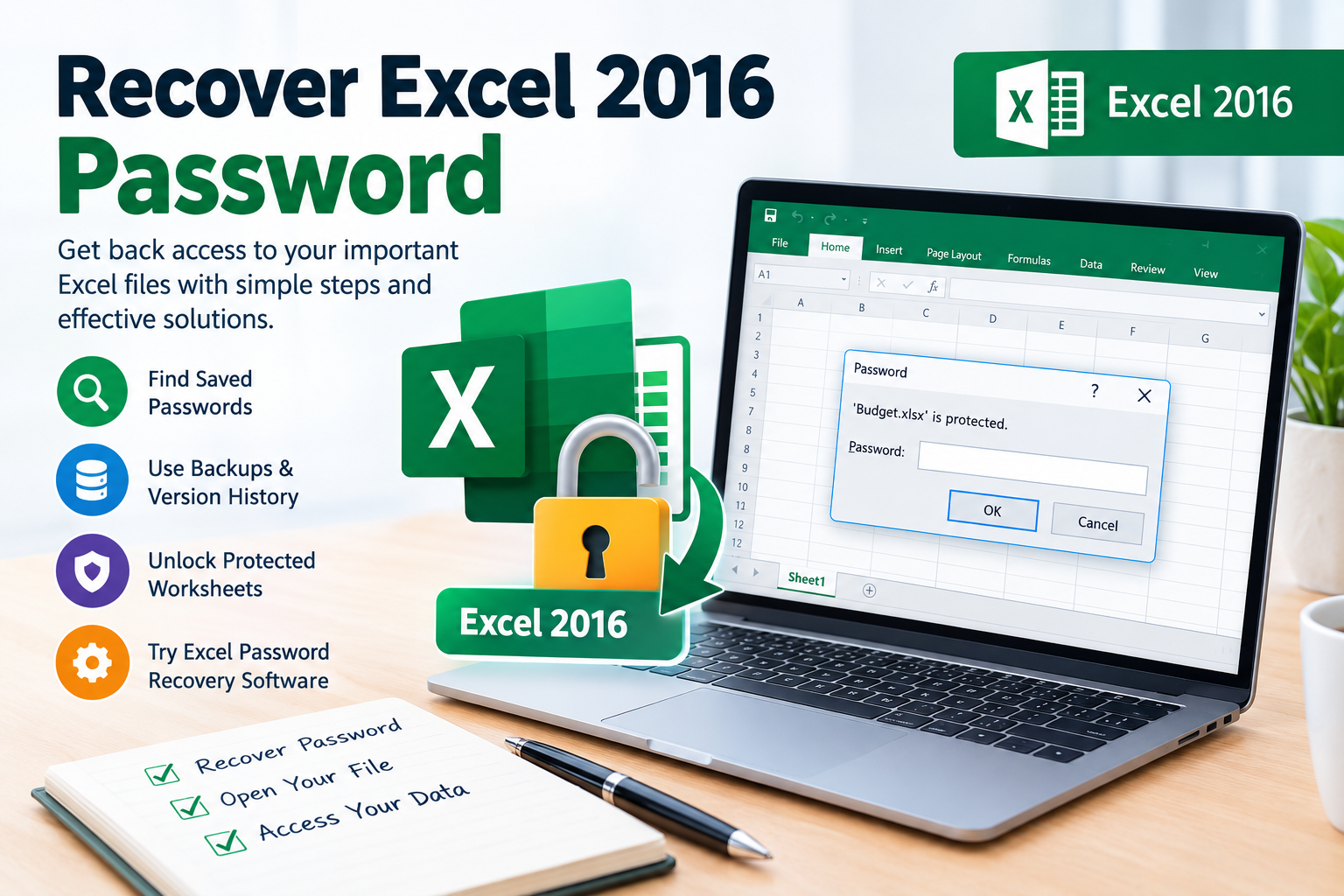
Have you forgotten the password to an important Microsoft Excel 2016 file? Losing access to a password-protected spreadsheet can be frustrating, especially when it contains business reports, financial records, customer information, or other essential data. Fortunately, several recovery options may help you regain access, depending on the type of password protection applied to the workbook.
Excel 2016 supports different forms of protection, including passwords required to open a file and passwords that restrict editing or modifying worksheets. Understanding the difference is the first step toward choosing an appropriate recovery method.
In this guide, you will learn how to recover an Excel 2016 password, explore built-in recovery options, understand the limitations of manual methods, and discover when dedicated Excel password recovery software may be useful.
Understanding Excel 2016 Password Protection
Before attempting recovery, identify which type of protection affects your spreadsheet.
1. Password to open an Excel file
This protection encrypts the workbook. You must provide the correct password before Excel can display the file’s contents. If the password is lost, recovery can be difficult because strong encryption is designed to prevent unauthorized access.
2. Worksheet protection password
Worksheet protection restricts actions such as editing locked cells, modifying formulas, or changing worksheet structure. It is different from file encryption and may have different recovery options.
3. Workbook structure protection
This protection limits changes to the workbook’s structure, such as adding, deleting, moving, or renaming worksheets.
Identifying the protection type helps you avoid wasting time on methods that cannot address your specific problem.
Method 1: Check for Saved Passwords and Backups
The simplest recovery option is to look for an existing copy of the password or an accessible version of the workbook.
Follow these steps:
- Check your password manager for a saved Excel password.
- Search relevant emails, notes, and secure records where you may have stored the password.
- Look for an earlier, unprotected version of the workbook.
- Check your organization’s approved backup system or cloud storage version history.
- If a colleague created the spreadsheet, ask the owner whether they can provide access.
This method is particularly useful when the password was forgotten recently or the file has been shared among multiple authorized users.
Important: Do not overwrite the original workbook while testing recovery options. Keep a separate backup copy whenever possible.
Method 2: Recover Access to a Protected Worksheet
If you can open the Excel 2016 workbook but cannot edit a particular worksheet, you may be dealing with worksheet protection rather than file encryption.
Try the following:
- Open the workbook in Microsoft Excel 2016.
- Select the protected worksheet.
- Open the Review tab.
- Look for the Unprotect Sheet option.
- If prompted, enter the correct password.
If you do not know the password, ask the workbook owner or administrator to unprotect the sheet or provide an editable copy.
Worksheet protection is not equivalent to strong file encryption. However, the available options depend on the protection mechanism and the workbook’s configuration. Do not assume that every protected worksheet can be recovered through a simple procedure.
Use these steps only for files you own or are authorized to modify.
Method 3: Restore an Earlier Version of the Excel File
If you have access to a backup or version history, restoring an earlier copy may be the fastest solution.
For files stored in OneDrive or SharePoint
- Open the relevant file location.
- Locate the Excel workbook.
- Open its version history using the available file-management options.
- Identify a version created before the password problem occurred.
- Review the version carefully and restore or download a separate copy if appropriate.
The exact options depend on your account, storage configuration, and organizational permissions.
For files stored on a Windows computer
Check your approved backup software, Windows backup history, or other configured file-recovery system. Previous Versions may be available if the necessary backup or restore-point configuration exists.
A backup will help only if it contains an accessible version of the workbook. Restoring a copy does not automatically recover the password from an encrypted file.
Method 4: Use Excel Password Recovery Software
When you cannot locate the password or an accessible backup, dedicated Excel password recovery software may be worth evaluating.
Depending on the product and protection type, recovery tools may support techniques such as dictionary-based recovery or brute-force password searching. These approaches attempt candidate passwords rather than bypassing strong encryption automatically.
Before choosing a tool, check the following features:
- Excel 2016 compatibility: Confirm that the software supports the specific XLS or XLSX file format and protection type.
- Recovery methods: Check whether it supports dictionary attacks, brute-force searches, or configurable password patterns.
- Password length and complexity: Longer passwords with varied characters may require substantially more search time.
- Preview and recovery reporting: Look for clear status information and understandable results.
- Data protection: Prefer software that processes files locally when possible, particularly for confidential business documents.
- Trial limitations: Determine whether the free trial can demonstrate recovery capabilities or whether saving recovered results requires a purchase.
No reputable tool should guarantee recovery of every forgotten password. Strong encryption, password complexity, and available computing resources can make recovery impractical.
Method 5: Understand Dictionary and Brute-Force Recovery
Two common techniques used by password recovery tools are dictionary attacks and brute-force attacks.
Dictionary attack: The software tests candidate passwords from a wordlist. It may be useful when the original password was based on familiar words, common patterns, or predictable combinations.
Brute-force attack: The software systematically tests combinations from a specified character set. The search space can grow rapidly as password length and character variety increase.
For example, searching a short password consisting of digits is generally a smaller task than searching a long password containing uppercase and lowercase letters, numbers, and symbols.
A hybrid or mask-based approach may be useful when you remember part of the password, such as its approximate length or a known character pattern.
These techniques are not interchangeable with worksheet unprotection. They are most relevant when a recovery tool supports the particular password protection applied to the file.
Common Problems During Excel 2016 Password Recovery
The software cannot open the file. Confirm that the file is intact and that you selected a tool compatible with its format and encryption type.
The recovery process takes too long. Reassess the likely password length and character set. A large search space can require significant time and computing resources.
The tool finds no password. The original password may fall outside the selected search patterns, or the tool may not support that protection type.
The file opens but editing remains restricted. You may have recovered access to the workbook without removing worksheet or workbook-structure protection.
The spreadsheet contains sensitive data. Avoid uploading confidential files to unknown online recovery services. Review the provider’s privacy practices before using any external tool.
How to Choose the Best Excel 2016 Password Recovery Tool
Before purchasing a recovery solution, compare its supported file formats, recovery methods, usability, privacy safeguards, and pricing.
A good evaluation process includes checking official documentation, reviewing independent user feedback, and testing the software on a non-sensitive sample file when possible.
If you are considering a paid Excel Password Recovery Tool, look for a clearly explained free trial, transparent limitations, and a refund policy. A trial should help you determine whether the software recognizes your file and offers a suitable recovery approach before you commit to a purchase.
Remember that software performance depends on the specific protection mechanism and password characteristics. Compatibility claims alone do not guarantee a successful recovery.
Frequently Asked Questions
Can I recover an Excel 2016 password for free?
You can first check password managers, backups, cloud version history, and copies of the workbook. Free recovery utilities may support certain protection types, but strong file encryption can make recovery difficult or infeasible.
Can I recover an Excel 2016 password without losing data?
Recovery attempts should begin with a backup copy of the original file. A suitable recovery method may preserve the workbook, but no method can guarantee success in every situation.
Does Excel 2016 have a forgotten-password recovery feature?
Excel does not provide a universal feature that reveals a forgotten password for an encrypted workbook. Your options generally include locating the password, finding an accessible backup, or evaluating a compatible recovery tool.
How long does Excel password recovery take?
It depends on the password’s length and complexity, the encryption mechanism, and the computing resources available. Some searches finish quickly, while others may take an impractical amount of time.
Is Excel worksheet protection the same as file encryption?
No. Worksheet protection restricts editing, whereas a password required to open an encrypted workbook protects access to its contents. The appropriate recovery approach depends on which protection is in place.
Conclusion
Recovering an Excel 2016 password starts with identifying the type of protection affecting the workbook. Check saved passwords, backups, and cloud version history before attempting more advanced methods. For encrypted files, dedicated Excel password recovery software may help in suitable circumstances, although success is never guaranteed.
If you regularly work with important spreadsheets, use a password manager, maintain secure backups, and document password ownership. These simple practices can reduce the risk of losing access to critical business data.
Need a practical recovery solution? Evaluate a compatible Excel Password Recovery Tool using its official documentation and free trial, if available. Verify support for Excel 2016 and your specific protection type before purchasing, and use the software only on files you own or are authorized to access.