How to Migrate Outlook PST Data to Another Computer: Complete Step-by-Step Guide
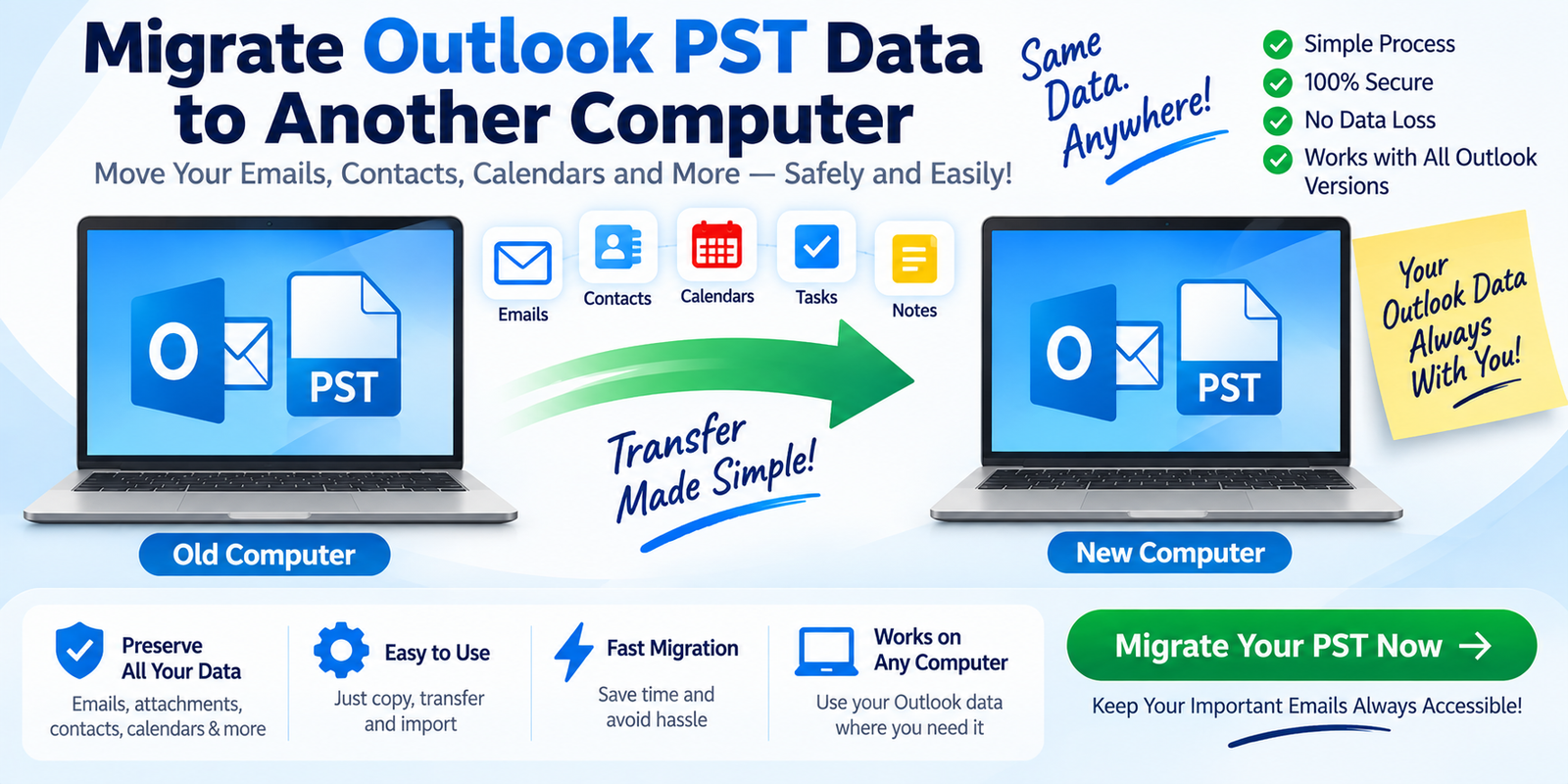
Moving to a new computer does not mean leaving your old Outlook emails behind. If your important emails, contacts, calendars, tasks, and archived messages are stored in an Outlook PST file, you can transfer that data to another computer and continue using it.
For many users, the basic process is simple: locate the PST file, copy it to the new computer, and import or open it in Outlook. However, large PST files, multiple archives, custom folders, and version differences can make migration more complicated.
This guide explains how to migrate Outlook PST data to another computer using practical methods, along with tips for avoiding common mistakes.
What Is an Outlook PST File?
A PST (Personal Storage Table) is an Outlook data file used to store mailbox information locally.
Depending on how Outlook is configured, a PST file may contain:
- Emails
- Attachments
- Contacts
- Calendars
- Tasks
- Notes
- Journal entries
- Custom folders
- Archived messages
Think of a PST file as a container holding your Outlook data. Instead of manually copying thousands of emails one at a time, you can move the PST file to the new computer.
The important distinction is that copying a PST file transfers stored data; it does not automatically configure your email account or Outlook profile on the new computer.
Why Migrate PST Data to Another Computer?
Users commonly migrate PST files when:
- Buying a new computer
- Replacing an old workstation
- Moving from one office computer to another
- Reinstalling Windows
- Creating a backup
- Moving archived emails
- Consolidating Outlook data
- Transferring historical business correspondence
For example, an employee may have several years of customer emails stored in an archive PST. Rather than starting from scratch on the new computer, the PST can be transferred and accessed there.
What Do You Need Before Starting?
Before beginning the migration, prepare both computers.
On the Old Computer
Make sure you can locate the PST file and that Outlook is not actively modifying it while you copy it.
On the New Computer
Install a compatible Outlook version and ensure there is sufficient disk space for the PST and any temporary files.
You should also have access to the email account credentials needed to configure the new Outlook installation.
Create a Backup
This is one of the most important steps.
Before making changes, create an additional copy of the PST file. If something goes wrong during migration, you still have the original data.
Method 1: Manually Copy the PST File
For many situations, manually copying the PST file is the simplest approach.
Step 1: Locate Your PST File
The location of a PST can vary depending on Outlook and Windows configuration.
A common location is:
Documents → Outlook Files
You may also find PST files in other folders depending on how the file was originally created or moved.
Instead of guessing the location, use Outlook’s account or data-file settings to identify the actual PST path.
Step 2: Close Outlook
Completely close Outlook before copying the PST.
This reduces the risk of copying a file while Outlook is still using or updating it.
Also check that Outlook has fully closed before proceeding.
Step 3: Copy the PST File
Copy the PST file to an external storage device, network location, or another secure transfer method.
For example:
Old Computer → External Drive → New Computer
Do not move only a shortcut or Outlook icon. You need the actual .pst file.
Step 4: Transfer the File
Connect the external drive to the new computer and copy the PST file to a suitable local folder.
For example:
Documents → Outlook Files
Keeping the file in an organized location makes future management easier.
Step 5: Open or Import the PST
Launch Outlook on the new computer.
Depending on your Outlook version and your goal, you may either:
Open the PST as an additional data file
or
Import its contents into another Outlook data structure.
The exact menu names can vary between Outlook versions, so follow the options displayed by your installation.
Step 6: Verify the Data
Once the PST is available, check important folders:
- Inbox
- Sent Items
- Drafts
- Deleted Items
- Archive folders
- Custom folders
Open several messages and verify their attachments.
Also check contacts and calendars if those items were included in the PST.
Method 2: Export and Import Using Outlook
Another approach is to use Outlook’s built-in export/import functionality where supported.
On the old computer, you can export selected mailbox data to a PST file. You then transfer that PST to the new computer and import or open it there.
A simplified workflow is:
Old Outlook → Export Data → PST → Transfer → New Outlook → Import Data
This method can be useful when you want to control exactly which folders are transferred.
For example, you may want to export only:
- Inbox
- Sent Items
- Contacts
- Calendar
- Specific archive folders
Selective export can prevent unnecessary information from being moved.
Does Copying PST Also Move the Email Account?
No.
This is a common misunderstanding.
A PST contains stored Outlook data, but your email account configuration is separate.
Suppose your old computer contains:
Copying the PST does not automatically recreate the email account on your new computer.
You generally need to configure the email account separately in Outlook.
This distinction is important because users sometimes copy the PST successfully and then expect new incoming messages to appear automatically. The PST only contains the data stored in it.
How Do You Move Outlook Contacts and Calendars?
If contacts and calendars are stored inside the PST, they can be transferred along with the relevant PST data.
After opening or importing the PST on the new computer, look for:
People / Contacts
and
Calendar
Then verify that important records are present.
Do not assume that every Outlook account configuration stores all data in a PST. Some account types and Outlook configurations use other mailbox-storage methods.
What About Large PST Files?
Large PST files require more planning.
A large archive may contain years of messages and attachments, making the transfer slower and requiring significant storage space.
Before moving a large PST:
- Check the file size.
- Make sure the external drive has enough free space.
- Make sure the destination computer has enough storage.
- Avoid interrupting the transfer.
- Keep the original PST until the migration has been verified.
For very large PST files, you may also consider converting or dividing data into manageable groups when appropriate.
What If the PST File Is Corrupted?
Sometimes a PST file will not open correctly because of file corruption, storage problems, interrupted transfers, or other issues.
Symptoms may include:
- Outlook reports that the PST cannot be opened.
- Some folders appear empty.
- Emails are missing.
- Outlook becomes unresponsive when accessing the file.
- The PST generates data-file errors.
In such situations, first work from a copy of the original file.
Outlook includes the Inbox Repair Tool (SCANPST) for certain PST repair scenarios. However, its usefulness depends on the type and extent of damage.
If the PST remains inaccessible, specialized PST recovery or conversion software may be considered. Recovery results depend on the condition of the file and should not be assumed to be guaranteed.
Can You Migrate PST Data Without Outlook on the Old Computer?
Yes, provided you already have access to the actual PST file.
You do not necessarily need Outlook running on the old computer just to copy a PST file.
The important thing is to obtain the actual data file.
For example:
Old computer → Locate PST → Copy PST → New computer → Open/import PST
However, if you need to export mailbox data that is not already stored in the PST, the available options can depend on the original Outlook environment.
Common Mistakes to Avoid
Mistake 1: Copying the Wrong File
Make sure you are copying the actual .pst file.
Mistake 2: Copying While Outlook Is Open
Close Outlook before transferring the PST.
Mistake 3: Deleting the Original Too Soon
Do not delete the old PST immediately after migration.
Keep it until you have completely verified the new setup.
Mistake 4: Forgetting Attachments
Open several emails containing attachments and make sure the files are accessible.
Mistake 5: Expecting the PST to Configure Outlook
A PST does not automatically recreate your email account settings.
Mistake 6: Skipping Verification
A migration is not complete simply because the PST appears in Outlook.
Check important folders, messages, attachments, contacts, and calendars.
When Should You Use PST Converter Software?
Manual PST migration works well when you simply need to move an intact PST from one computer to another.
Dedicated PST Converter Software becomes more relevant when you need functionality beyond basic file transfer.
For example, professional software may provide features such as:
- PST scanning
- Mailbox preview
- Selective conversion
- Batch processing
- Attachment preservation
- Folder-structure preservation
- Conversion to other email formats
- Recovery-oriented processing for damaged files
This can be particularly useful when the destination computer uses a different email application or when the original PST has accessibility problems.
Best Practices for Outlook PST Migration
Use the following workflow for a safer migration:
1. Locate the correct PST
Identify the actual Outlook data file.
2. Make a backup
Keep an untouched copy of the original.
3. Close Outlook
Ensure the data file is not actively being used.
4. Transfer the PST
Use a reliable external or network transfer method.
5. Configure Outlook
Set up the required email account on the new computer.
6. Open or import the PST
Add the transferred data to Outlook.
7. Verify everything
Check emails, attachments, contacts, calendars, and folders.
8. Retain the original temporarily
Keep the backup until the new environment is confirmed to work correctly.
Frequently Asked Questions
How do I transfer Outlook PST to a new computer?
Copy the PST from the old computer to secure storage, transfer it to the new computer, then open or import it using the supported Outlook data-file options.
Can I copy a PST file using a USB drive?
Yes. A USB drive can be used to transfer a PST, provided it has enough available space and the file is copied completely.
Will my emails remain in the PST?
Yes, the mailbox information stored in the PST remains in the file. Always verify the contents after transfer.
Can I migrate multiple PST files?
Yes. Multiple PST files can be transferred and opened or imported separately, provided the new Outlook environment supports them.
Can I migrate PST data to another email client?
That depends on the destination application. Some email clients do not directly support PST, in which case you may need a compatible conversion process, such as converting PST to MBOX or EML.
Is PST migration safe?
PST migration can be performed safely by creating backups, closing Outlook before copying the file, using reliable storage, and verifying the migrated data before removing the original.
Final Thoughts
Learning how to migrate Outlook PST data to another computer is useful whenever you replace a computer, move to a new workstation, or need access to an older Outlook archive.
For a straightforward migration, the basic process is:
Backup PST → Close Outlook → Copy PST → Transfer to new computer → Open/import PST → Verify data
Remember that transferring a PST and transferring an email account are two different tasks. The PST contains stored mailbox information, while the account and Outlook profile may need to be configured separately.
For healthy PST files, manual transfer is often sufficient. For damaged files, complex migrations, or conversions to formats such as MBOX or EML, specialized PST conversion software may provide additional capabilities.
The safest migration strategy is simple: protect the original PST, transfer a copy, verify your important data, and only then consider the migration complete.